
Getting Started with HoleSnap Mesh Editor
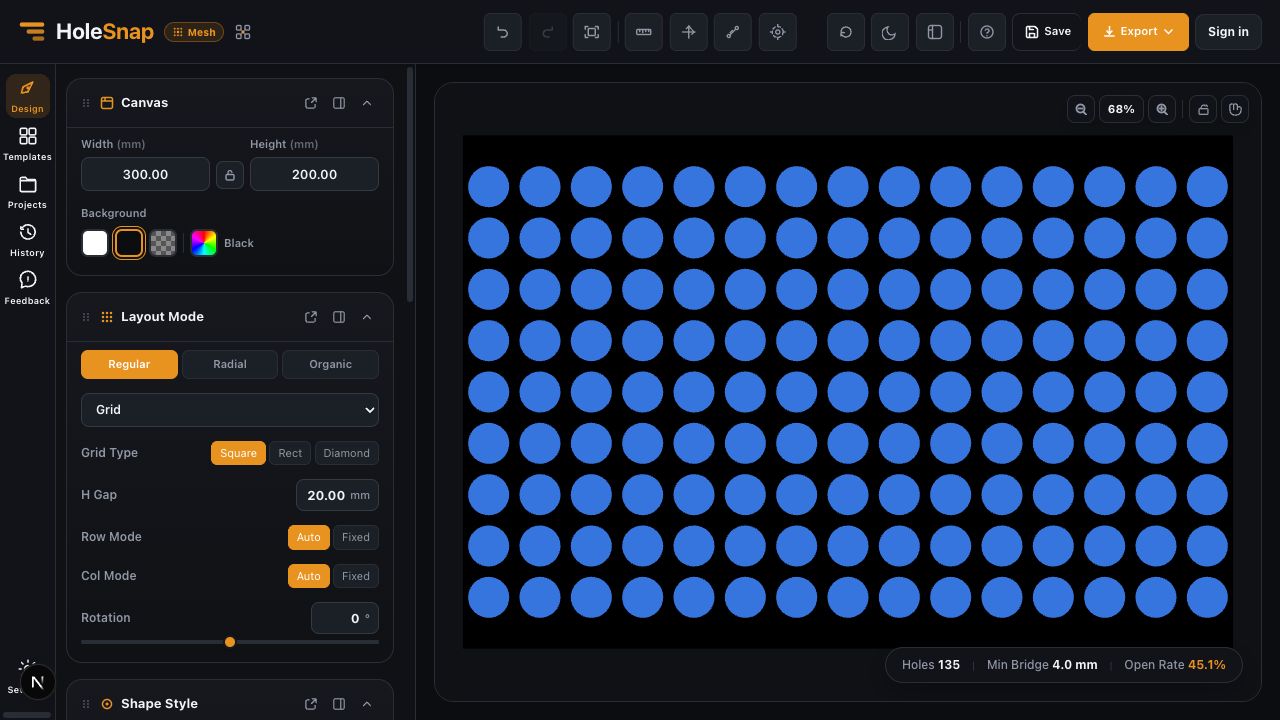
HoleSnap Mesh Editor is the main HoleSnap application for building parameter-based vector patterns. You can define a canvas, choose a shape and layout, refine the result with gradients or effects, and export SVG, DXF, or STP/STEP geometry.
Use this guide to understand what the Mesh Editor does before following the first-pattern tutorial.
What You Can Do
The Mesh Editor combines several parts of a pattern in one live workspace:
- Canvas: Set the design width and height, background, and preview context.
- Shape: Choose Circle, Rectangle, Polygon, Diamond, Star, Ring, or Custom, then adjust the available size and shape controls.
- Layout: Arrange shapes with Grid, Hex, Staggered, Scatter, Concentric, Polar Array, Spiral, Fibonacci, Cross-line, or Along Bounds layouts.
- Gradient: Change size, angle, shape, or density across the pattern.
- Boundary: Limit the pattern with a rectangular, circular, or custom boundary and use Hide or Trim behavior.
- Effects: Add Wave, Swirl, Twist, or random perturbation when the design needs controlled variation.
- Export: Generate SVG, DXF, or STP/STEP files from the current editor state.
Polar Array is a Plus layout. Project save, load, rename, and delete workflows also require sign-in and Plus access in the current editor.
How the Editor Works
The layout creates the initial positions. The editor then applies gradient settings, perturbation, displacement, and boundary behavior before drawing the preview and generating export geometry.
This order matters. For example, a density gradient can change how many positions remain, and a boundary can remove positions near the edge. Watch the status values after each major change instead of assuming the original layout count will stay the same.
What the Status Values Mean
The status area reports values such as:
- Hole count: The number of pattern instances in the current result.
- Open area: An estimate of how much of the panel is open geometry.
- Minimum bridge: An estimate of the narrowest material between nearby openings.
These values help you compare design changes. They are not a structural or manufacturing guarantee.
What Export Does
Mesh Editor can export:
- SVG for vector design and compatible fabrication workflows.
- DXF for CAD/CAM workflows, with millimeter or inch unit selection.
- STP/STEP for surface or solid 3D workflows with the available board and shape options.
Export requires sign-in and is subject to the current quota and format limits. After downloading a file, open it in the target CAD/CAM software and check scale, units, closed contours, duplicate geometry, board outline, edge trimming, and minimum bridge before fabrication.
Where to Start
Follow Create Your First Perforated Pattern in Mesh Editor next. It uses a simple circle grid so you can learn the complete path before adding gradients, custom boundaries, or effects.
Current Boundaries
- The formal Mesh Editor export choices are SVG, DXF, and STP/STEP. Do not expect PNG in the current Export panel unless a visible option is added and verified.
- A Custom shape uses the Path Editor. Import and export behavior for complex paths should be tested with the actual file.
- Applying a template can replace the current editor state, so save work first when project access is available.
- Exported geometry still needs downstream verification for the intended material, process, and software.
Related Guides
- Create Your First Perforated Pattern in Mesh Editor
- Editor Workspace Overview
- Check a Pattern Before Export