
Editor Workspace Overview
The HoleSnap Mesh Editor keeps navigation, design controls, a live canvas, and status information in one workspace. This article explains what each area is for so you can find a setting without reading every feature guide first.
The Workspace at a Glance
The desktop workspace has five functional areas:
- The top action bar.
- The side navigation.
- The parameter panels.
- The central canvas.
- The status area.
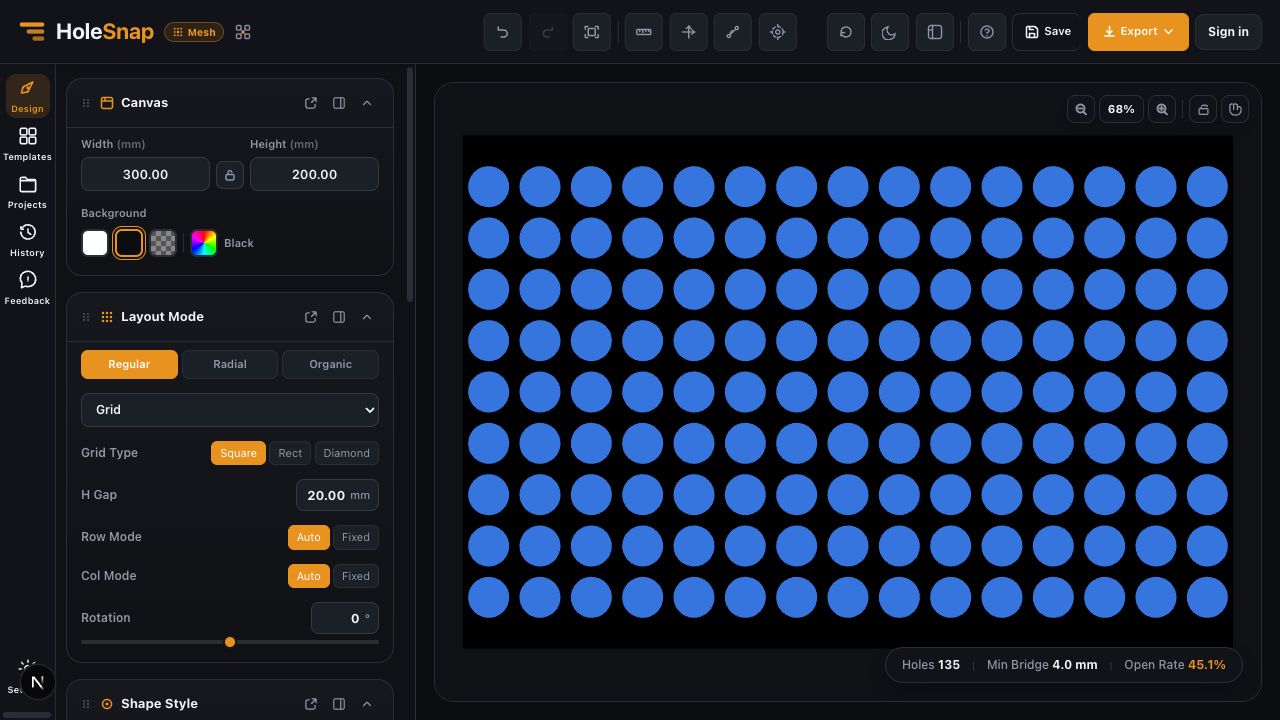
The exact width and position of a panel can change with the browser size or saved layout, but each area keeps the same responsibility.
Top Action Bar
Use the top bar for actions that affect the whole editing session rather than one pattern parameter. It includes access to actions such as:
- Undo and redo.
- View-related controls.
- Project save when the account has access.
- Export.
- Account controls.
Project operations require sign-in and Plus access in the current editor. Export requires sign-in and is subject to the current quota and format limits.
Side Navigation
The side navigation switches between major work areas. Current areas include design controls, templates, projects, history, and settings.
Selecting a design area opens its parameter panels beside the navigation. If you cannot find a setting, first confirm that you are in the correct work area rather than scrolling through an unrelated panel.
Parameter Panels
The main design panels are:
- Canvas: Width, height, aspect-ratio lock, and background.
- Layout: Grid and other regular, radial, or free arrangements.
- Shape: Shape type, size, rotation, color, and shape-specific controls.
- Gradient: Size, angle, shape, or density changes across the pattern.
- Effects: Wave, Swirl, Twist, and random perturbation controls.
- Boundary: Rectangular, circular, or custom limits with Hide or Trim behavior.
Change one group at a time when learning the editor. The preview updates from the combined state, so several active features can make the source of a change harder to identify.
Central Canvas
The canvas is the live preview of the current pattern. Use it to:
- See the effect of parameter changes.
- Zoom and pan around the design.
- Inspect edges and boundaries.
- View overlays such as rulers, axes, and control points when enabled.
The canvas background helps with visual contrast. It does not change the exported geometry by itself.
Status Area
The status area reports design values such as Hole count, Open area, and Minimum bridge. Use these values to compare changes while editing.
They are estimates for design review. They do not guarantee strength, airflow, or compatibility with a specific process.
A Simple Navigation Pattern
For most new designs, work in this order:
- Set the Canvas dimensions.
- Choose a Shape.
- Choose a Layout and spacing.
- Check the status values and edges.
- Add Gradient, Effects, or Boundary only when the base pattern is correct.
- Export and verify the result in the target software.
This order makes it easier to understand which setting produced each visible change.
Related Guides
- Create Your First Perforated Pattern in Mesh Editor
- Canvas and Preview
- Layout Settings Overview
- Export SVG, DXF, or STP from Mesh Editor