Skip to content
  • Editor
  • tools
    • Perforated Panel Designer
    • Image to Hole Pattern
    • SVG to DXF Converter
  • Blog
  • Support

Workspace

1
  • Workspace Overview: Top Bar, Sidebar, and Canvas

Templates

1
  • Use Templates to Start a Perforated Panel Design

Projects

1
  • Save and Reopen a HoleSnap Project

Canvas and Preview

2
  • How to Set Panel Size in Millimeters
  • Canvas and Preview

Hole Shape and Style

1
  • Choose a Hole Shape for Your Perforated Panel

Layout Settings

2
  • Layout Settings Overview
  • Grid Array| Create Perforated Patterns with Grid Array in HoleSnap

Getting Started

4
  • Key Editor Terms
  • Basic Perforated Panel Workflow
  • Editor Workspace Overview
  • Getting Started with HoleSnap

Gradient and Variation

7
  • Perturbation and Displacement Effects
  • Size Noise and Pattern Rules
  • Rotation and Shape Gradients
  • Density Gradient Guide
  • Gradient Control Points and Lines
  • Create a Size Gradient Pattern
  • Gradient and Variation Overview

Tools

1
  • Tools |Convert SVG to DXF
View Categories
  • Home
  • Support
  • Gradient and Variation
  • Rotation and Shape Gradients

Rotation and Shape Gradients

1 min read

Rotation and Shape Gradients #

Overview #

Rotation and shape gradients create visual movement without only changing hole size. They are useful for decorative panels, product details, speaker covers, lighting screens, and patterns that need a stronger design direction.

Use these controls after you understand size gradients and layout settings.

Rotation Gradient #

A rotation gradient changes the angle of holes across the panel.

It works best with non-circular shapes, such as:

  • Rectangles.
  • Slots.
  • Diamonds.
  • Polygons.
  • Stars.

Circles do not visually show rotation, so choose a shape with direction if you want the effect to be visible.

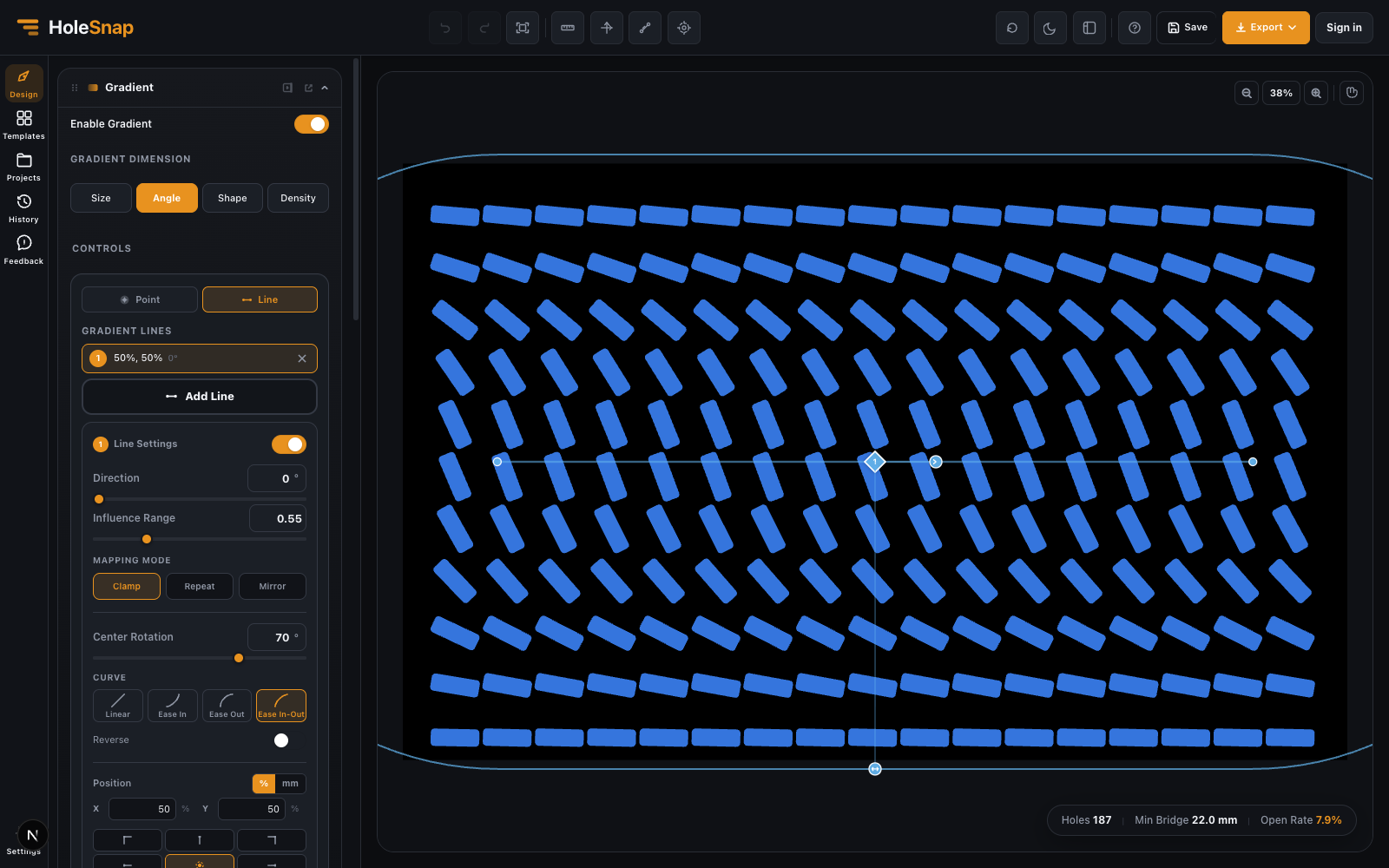
Create a Rotation Gradient #

  • Choose a shape that shows rotation, such as a slot or rectangle.
  • Open Gradient.
  • Turn on Enable Gradient.
  • Choose Angle in Gradient Dimension.
  • Add a control point or gradient line.
  • Adjust Center Rotation.
  • Adjust influence radius or range.
  • Choose a curve and reverse setting if needed.
Rotation gradient applied to slot-shaped holes

Use a line control for directional rotation. Use a point control for radial rotation around a focal area.

Rotation Gradient Tips #

  • Use smaller angle values first, such as 15° to 45°.
  • Check sharp corners after rotation.
  • Watch for holes that rotate too close to neighboring holes.
  • Use slots carefully because rotation can reduce bridge width diagonally.
  • Keep export complexity in mind for dense decorative patterns.

Shape Gradient #

A shape gradient changes holes between a base shape and a target shape.

For example, a pattern can transition from circles to diamonds, rectangles, polygons, or stars.

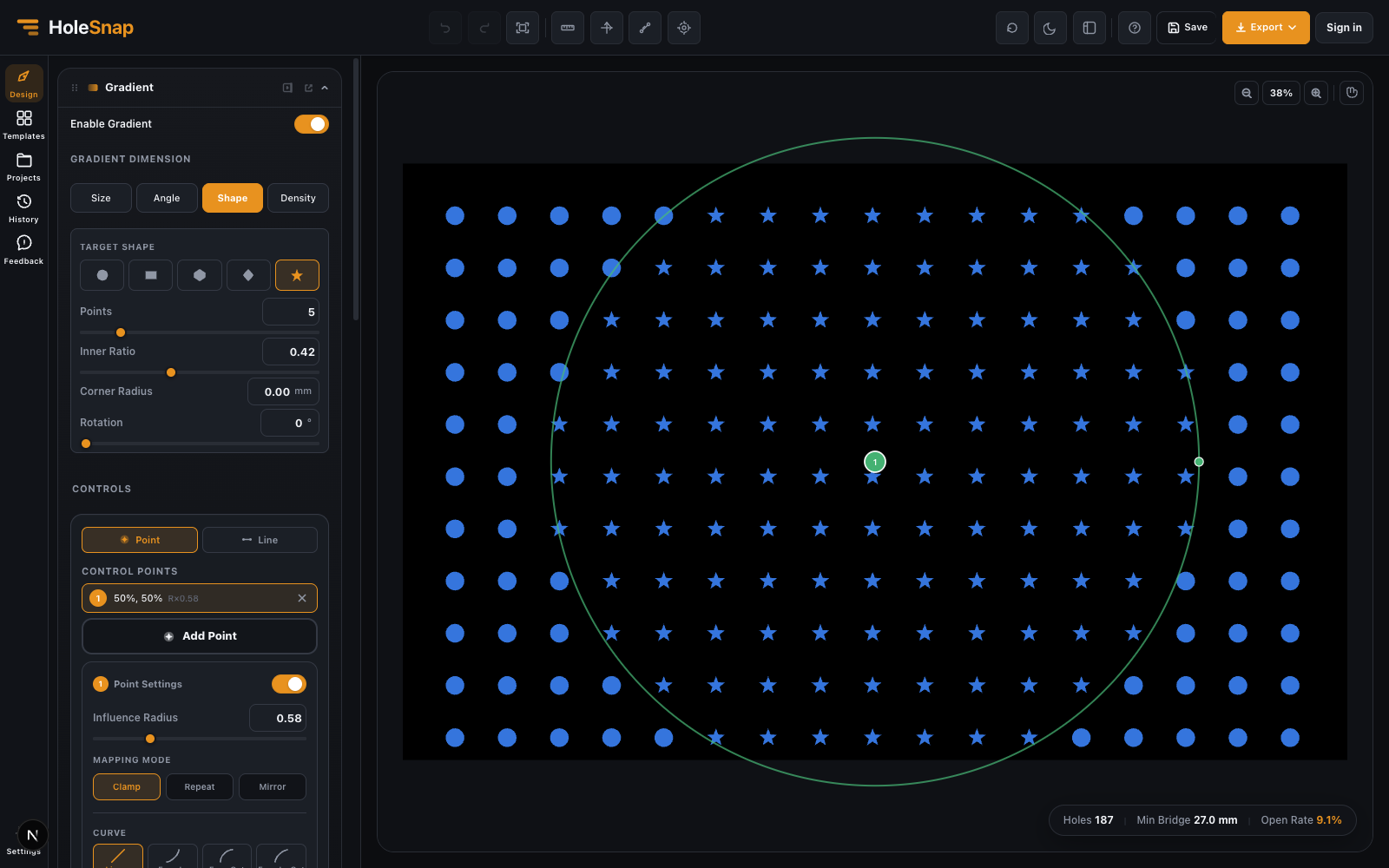
In HoleSnap, shape gradients use a target shape. The base shape comes from the current Shape & Style settings, and the target is selected inside the Gradient panel.

Shape gradient transitioning from circular holes toward a star target shape

Create a Shape Gradient #

  • Set the base shape in Shape & Style.
  • Open Gradient.
  • Turn on Enable Gradient.
  • Choose Shape in Gradient Dimension.
  • Select a Target Shape.
  • Adjust target shape parameters such as aspect ratio, polygon sides, star points, corner radius, or rotation.
  • Add a control point or gradient line.
  • Adjust influence radius or range.
  • Choose Clamp, Repeat, or Mirror.

Target Shape Parameters #

Depending on the selected target shape, you may see:

  • Aspect Ratio for rectangles or diamonds.
  • Polygon Sides for polygon targets.
  • Star Points and inner ratio for star targets.
  • Corner Radius for shapes that support rounded corners.
  • Rotation for directional target shapes.
  • Ring Inner Diameter for ring targets when available.

Use simple target shapes first. Decorative targets can increase file complexity.

Mapping Modes for Shape Gradients #

Clamp applies the target shape inside the influence area and returns to the base shape outside it.

Repeat creates repeated target/base zones.

Mirror alternates the transition direction and often creates a smoother repeated rhythm.

For most fabrication work, start with Clamp.

Fabrication Checks #

Before exporting a rotation or shape gradient, check:

  • Minimum bridge width.
  • Sharp corners.
  • Small target shape details.
  • Overlapping holes.
  • Edge trimming.
  • DXF complexity.

Shape gradients can make a design visually rich, but they can also create geometry that is harder to cut. If the exported file feels too complex, simplify the target shape or reduce hole count.

Updated on May 7, 2026

What are your Feelings

  • Happy
  • Normal
  • Sad

Share This Article :

  • Facebook
  • X
  • LinkedIn
  • Pinterest
Size Noise and Pattern RulesDensity Gradient Guide

Powered by BetterDocs

Table of Contents
  • Rotation and Shape Gradients
    • Overview
    • Rotation Gradient
    • Create a Rotation Gradient
    • Rotation Gradient Tips
    • Shape Gradient
    • Create a Shape Gradient
    • Target Shape Parameters
    • Mapping Modes for Shape Gradients
    • Fabrication Checks

Create Cleaner Perforated Panel Files

Use HoleSnap to generate accurate perforated panel DXF files online, then come back here whenever you need design guidance, fabrication tips, or answers.

© 2026 Bruno Guevara All Rights Reserved

Pinterest
  • English