
Use Templates to Start a Perforated Panel Design
Templates load a prepared Mesh Editor state so you can begin from an existing pattern instead of rebuilding every setting. Check whether a template is Free or Plus before applying it.
Before Applying a Template
Applying a template can replace the current Canvas, Shape, Layout, Gradient, Effects, and Boundary state. Save the current project first when project access is available, or export a reference file before continuing.
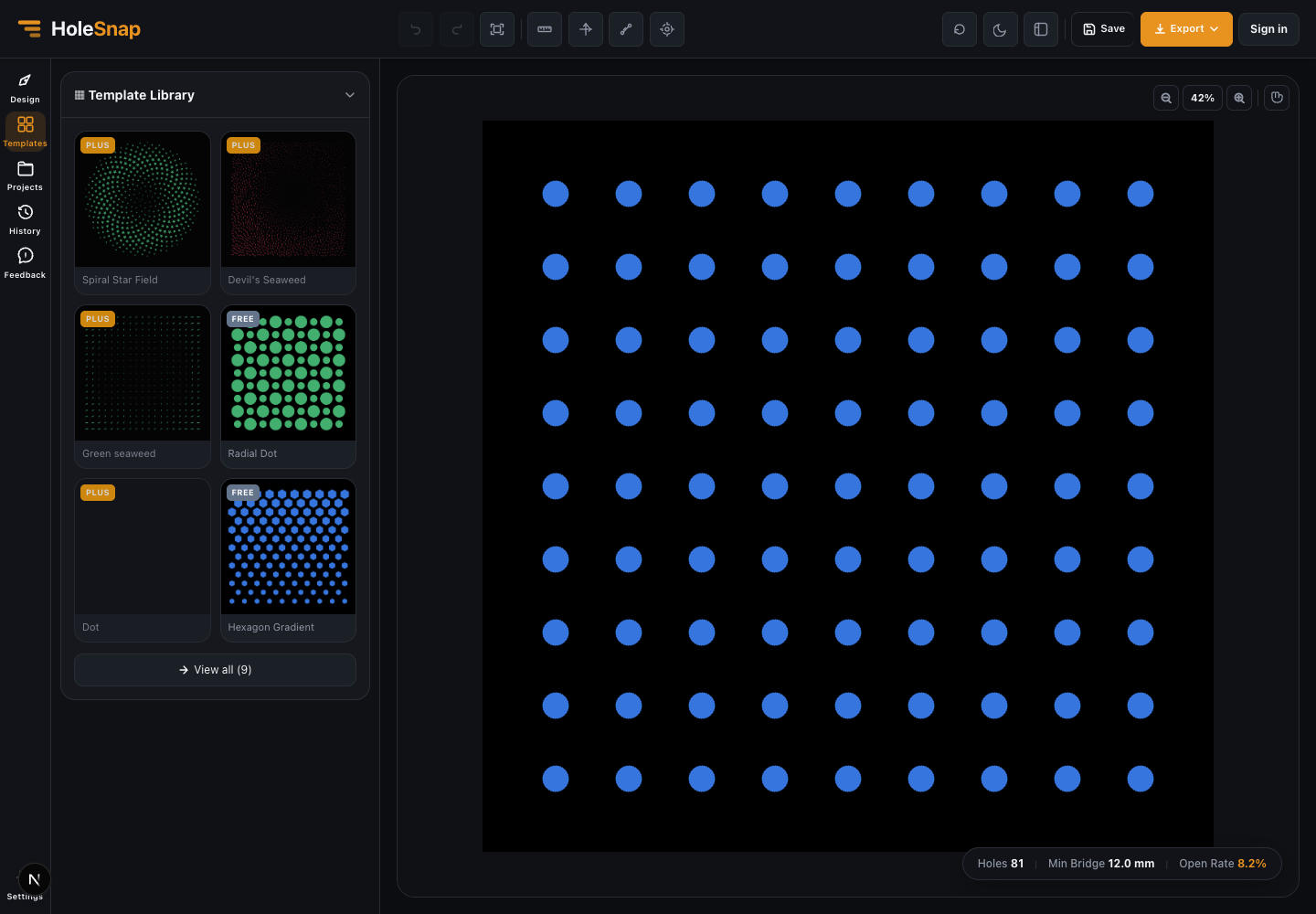
Open the Template Library
- Select Templates in the side navigation.
- Review the visible template previews and their FREE or PLUS labels.
- Use View all to open the Template Market when you need search or additional pages.
- Select a template to inspect or apply it.
Customize the Result
After applying a template:
- Confirm Canvas Width and Height.
- Review Shape dimensions and shape-specific controls.
- Review the active Layout and spacing.
- Check whether Gradient, Displacement, Perturbation, or Boundary are enabled.
- Read Holes, Min Bridge, and Open Rate before exporting.
Do not assume the template’s example values fit a particular material or fabrication process. Treat them as a starting state.
Free and Plus Templates
Free templates can be applied without a Plus template entitlement. Templates marked Plus remain locked until the account has the required plan. The template label is the authoritative signal; do not rely on the visual complexity of the preview to guess access.
Troubleshooting
- Current work disappeared: Applying a template replaces the editor state. Use Undo when available or reopen the previously saved project.
- A template is locked: Check the FREE or PLUS label and the current account plan.
- The result looks different from the thumbnail: Fit the Canvas in view and review Canvas dimensions, Boundary, and Gradient settings.
- A template exports slowly: Reduce unnecessary pattern count or advanced effects before exporting a test.
Related Guides
- Save and Reopen a HoleSnap Project
- Editor Workspace Overview
- Check a Pattern Before Export