Skip to content
  • Editor
  • tools
    • Perforated Panel Designer
    • Image to Hole Pattern
    • SVG to DXF Converter
  • Blog
  • Support

Workspace

1
  • Workspace Overview: Top Bar, Sidebar, and Canvas

Templates

1
  • Use Templates to Start a Perforated Panel Design

Projects

1
  • Save and Reopen a HoleSnap Project

Canvas and Preview

2
  • How to Set Panel Size in Millimeters
  • Canvas and Preview

Hole Shape and Style

1
  • Choose a Hole Shape for Your Perforated Panel

Layout Settings

2
  • Layout Settings Overview
  • Grid Array| Create Perforated Patterns with Grid Array in HoleSnap

Getting Started

4
  • Key Editor Terms
  • Basic Perforated Panel Workflow
  • Editor Workspace Overview
  • Getting Started with HoleSnap

Gradient and Variation

7
  • Perturbation and Displacement Effects
  • Size Noise and Pattern Rules
  • Rotation and Shape Gradients
  • Density Gradient Guide
  • Gradient Control Points and Lines
  • Create a Size Gradient Pattern
  • Gradient and Variation Overview

Tools

1
  • Tools |Convert SVG to DXF
View Categories
  • Home
  • Support
  • Canvas and Preview
  • Canvas and Preview

Canvas and Preview

1 min read

Overview #

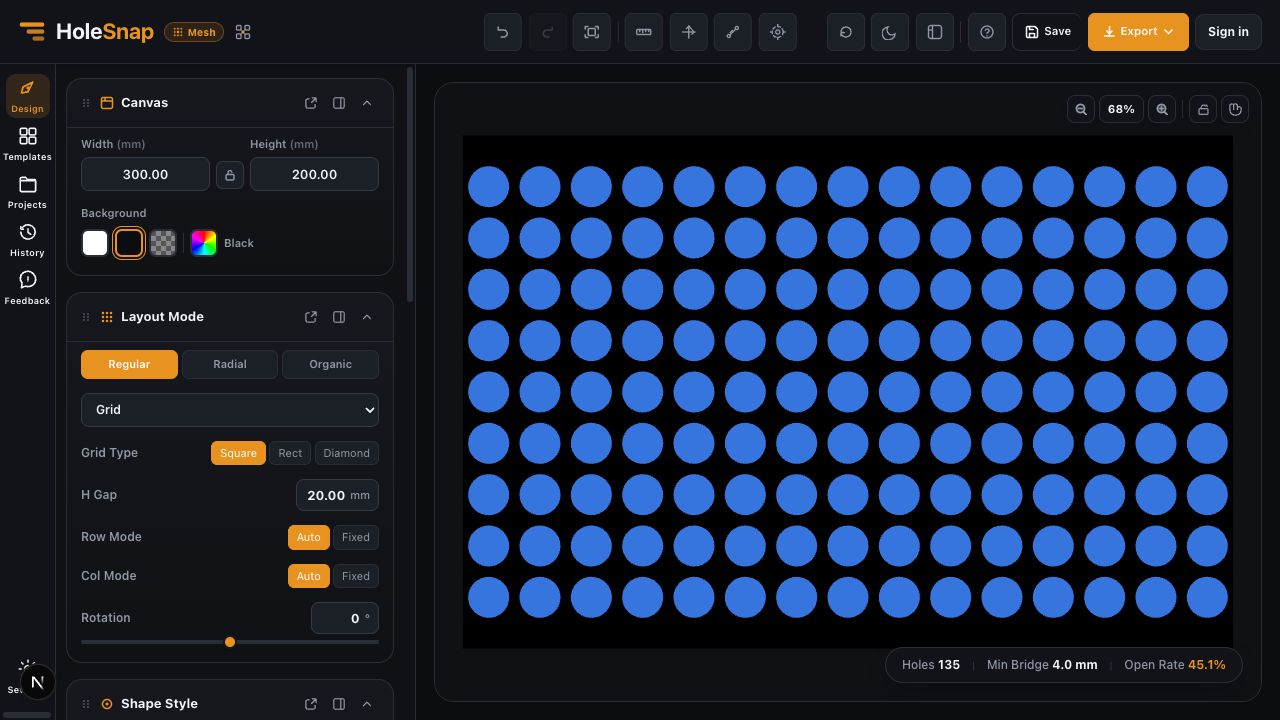
The canvas defines the size of your perforated panel and shows a live preview of the pattern. It is the foundation for layout, boundary, gradient, and export settings.

HoleSnap editor workspace showing the canvas preview and design panels
HoleSnap editor canvas and live preview overview

Canvas Size #

Set the panel width and height in the Canvas panel. These dimensions represent the working area of the design, usually in millimeters.

Canvas settings and layout controls for a perforated panel design
Canvas panel and layout controls in HoleSnap

Changing the canvas size affects:

  • The area where holes are generated.
  • The boundary and trim region.
  • The open-area calculation.
  • The exported SVG, DXF, PNG, or STP scene.
  • The way imported custom shapes or boundaries are centered and scaled.

Use the aspect lock if you want to resize the panel while keeping the same width-to-height ratio.

Background #

The background helps you preview contrast on the screen. You can use white, black, transparent, or a custom color.

For fabrication exports, treat the background as a preview setting unless your selected export option explicitly includes board or background geometry.

Zoom and Pan #

Use zoom and pan to inspect dense patterns, edge trimming, and small bridge areas.

Common controls:

  • Mouse wheel: zoom in or out.
  • Spacebar: temporarily pan the view.
  • H key: switch pan mode.
  • Fit view: return the design to a comfortable full-panel view.

Ruler, Axes, and Measurement #

The top bar includes view helpers for checking the design:

  • Ruler: shows scale references around the panel.
  • Axes: shows orientation and origin.
  • Measurement: lets you inspect a distance directly on the preview.
  • Controls: shows or hides interactive gradient controls.

Use these tools when you are checking alignment, margin, spacing, or a boundary.

Status Bar #

The status bar shows live design metrics:

  • Hole count: the number of visible holes after layout, effects, and boundary rules.
  • Open area: the estimated percentage of open material.
  • Minimum bridge: the smallest estimated distance between neighboring holes.

These values are useful during design, especially when balancing airflow, visibility, strength, and cost.

Preview vs Export #

The canvas preview is optimized for interactive editing. Export files are generated from the current design state and may include additional export-specific rules, format limits, unit options, and geometry conversions.

Export panel showing format options for a HoleSnap perforated panel design
HoleSnap export panel for SVG DXF PNG and STP

Before fabrication, always open the exported file in CAD/CAM software and confirm:

  • Scale and units.
  • Board outline.
  • Hole geometry.
  • Trimmed edges.
  • Layer or object structure.
  • Minimum bridge and tool compatibility.

Practical Tips #

  • Start with a simple canvas size before adding complex gradients or custom boundaries.
  • Use a high-contrast background when inspecting small holes.
  • Turn on rulers when checking margins.
  • Watch the minimum bridge when reducing spacing or increasing hole size.
  • Use fit view after large size changes so the full design is visible again.
Updated on May 5, 2026

What are your Feelings

  • Happy
  • Normal
  • Sad

Share This Article :

  • Facebook
  • X
  • LinkedIn
  • Pinterest
How to Set Panel Size in MillimetersHow to Set Panel Size in Millimeters

Powered by BetterDocs

Table of Contents
  • Overview
  • Canvas Size
  • Background
  • Zoom and Pan
  • Ruler, Axes, and Measurement
  • Status Bar
  • Preview vs Export
  • Practical Tips

Create Cleaner Perforated Panel Files

Use HoleSnap to generate accurate perforated panel DXF files online, then come back here whenever you need design guidance, fabrication tips, or answers.

© 2026 Bruno Guevara All Rights Reserved

Pinterest
  • English