Skip to content
  • Editor
  • tools
    • Perforated Panel Designer
    • Image to Hole Pattern
    • SVG to DXF Converter
  • Blog
  • Support

Workspace

1
  • Workspace Overview: Top Bar, Sidebar, and Canvas

Templates

1
  • Use Templates to Start a Perforated Panel Design

Projects

1
  • Save and Reopen a HoleSnap Project

Canvas and Preview

2
  • How to Set Panel Size in Millimeters
  • Canvas and Preview

Hole Shape and Style

1
  • Choose a Hole Shape for Your Perforated Panel

Layout Settings

2
  • Layout Settings Overview
  • Grid Array| Create Perforated Patterns with Grid Array in HoleSnap

Getting Started

4
  • Key Editor Terms
  • Basic Perforated Panel Workflow
  • Editor Workspace Overview
  • Getting Started with HoleSnap

Gradient and Variation

7
  • Perturbation and Displacement Effects
  • Size Noise and Pattern Rules
  • Rotation and Shape Gradients
  • Density Gradient Guide
  • Gradient Control Points and Lines
  • Create a Size Gradient Pattern
  • Gradient and Variation Overview

Tools

1
  • Tools |Convert SVG to DXF
View Categories
  • Home
  • Support
  • Gradient and Variation
  • Perturbation and Displacement Effects

Perturbation and Displacement Effects

1 min read

Perturbation and Displacement Effects #

Overview #

Perturbation and displacement effects change the pattern after the basic layout is generated. They are useful for making a panel feel more organic, dynamic, or directional.

Use these tools carefully. They can create beautiful patterns, but they can also reduce bridge width or make export geometry more complex.

Perturbation #

Perturbation adds controlled randomness to the pattern.

It can vary:

  • Position.
  • Size.
  • Angle.
  • Seed.

Use perturbation when a perfectly regular grid feels too mechanical.

Create a Perturbed Pattern #

  • Start with a clean layout such as Grid, Hex, or Staggered.
  • Open Perturbation.
  • Turn on Enable Perturbation.
  • Increase Position slightly to move holes away from the perfect grid.
  • Increase Size if you want hole sizes to vary.
  • Increase Angle for rotated shapes such as rectangles or slots.
  • Set a Seed to make the random result repeatable.

Use small values first. Strong perturbation can cause holes to overlap or move too close to the boundary.

Perturbation Seed #

The seed controls the random result. If the seed stays the same, the pattern stays repeatable.

Use Reseed when you want a new version of the same idea.

Keep the seed if the design has already been reviewed or shared.

Displacement #

Displacement moves the whole pattern according to a larger effect field.

HoleSnap supports:

  • Wave.
  • Swirl.
  • Twist.

These effects are different from random perturbation. They create directional or radial movement across the whole design.

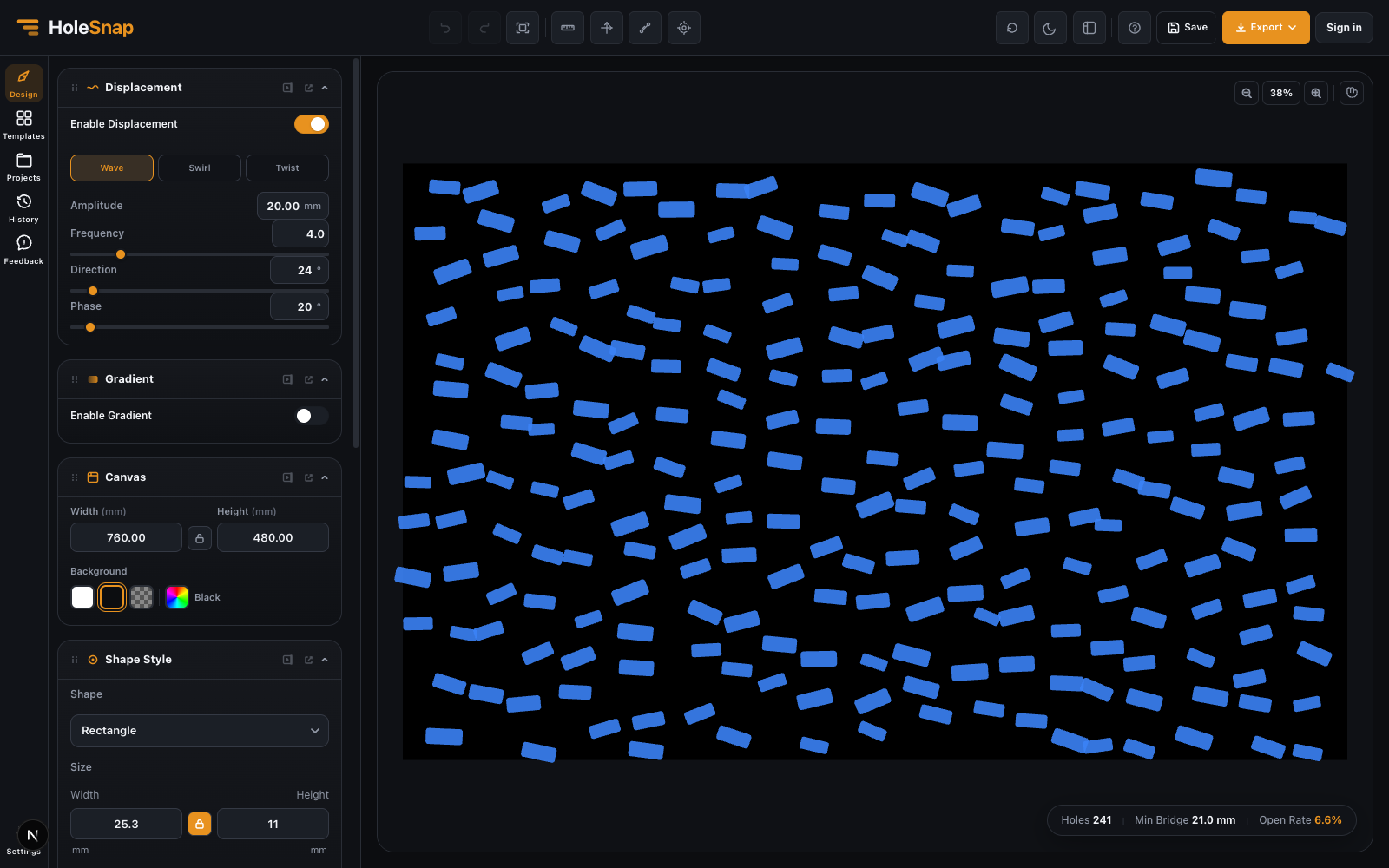
Wave Displacement #

Wave displacement moves points in a wave pattern.

Wave displacement applied to a perforation pattern

Controls include:

  • Amplitude: how far the wave moves the points.
  • Frequency: how many waves appear across the panel.
  • Angle: wave direction.
  • Phase: shifts the wave position.

Use wave displacement for flowing decorative panels, acoustic surfaces, or visual rhythm.

Swirl Displacement #

Swirl displacement rotates points around a center.

Controls include:

  • Strength: how strong the swirl is.
  • Radius: how far the swirl influence reaches.
  • X / Y center: where the swirl center sits on the panel.

Use swirl displacement for circular motion, fan-inspired patterns, or focal decorative effects.

Twist Displacement #

Twist displacement rotates points around a center with a twist field.

Controls include:

  • Strength: twist angle.
  • X / Y center: center of the twist.

Use twist when you want a stronger radial motion than a normal rotation gradient.

Recommended Workflow #

  • Build the base layout first.
  • Add gradient controls if needed.
  • Enable perturbation or displacement last.
  • Keep values small at first.
  • Check bridge width and boundaries before export.

Effects should be the final design layer, not the first step.

Fabrication Checks #

After applying perturbation or displacement, inspect:

  • Overlapping holes.
  • Minimum bridge width.
  • Holes near trimmed edges.
  • Very small holes from size variation.
  • DXF complexity.
  • Whether the design still matches the intended panel area.

If the pattern becomes too dense, reduce the effect strength, increase spacing, or lower the hole size.

Updated on May 7, 2026

What are your Feelings

  • Happy
  • Normal
  • Sad

Share This Article :

  • Facebook
  • X
  • LinkedIn
  • Pinterest
Gradient and Variation OverviewSize Noise and Pattern Rules

Powered by BetterDocs

Table of Contents
  • Perturbation and Displacement Effects
    • Overview
    • Perturbation
    • Create a Perturbed Pattern
    • Perturbation Seed
    • Displacement
    • Wave Displacement
    • Swirl Displacement
    • Twist Displacement
    • Recommended Workflow
    • Fabrication Checks

Create Cleaner Perforated Panel Files

Use HoleSnap to generate accurate perforated panel DXF files online, then come back here whenever you need design guidance, fabrication tips, or answers.

© 2026 Bruno Guevara All Rights Reserved

Pinterest
  • English