
Layout Settings Overview
Layout Mode determines where Mesh Editor places each repeated Shape. Choose the family first, then select a mode and adjust only the controls shown for that mode.
Regular Layouts
The Regular family contains:
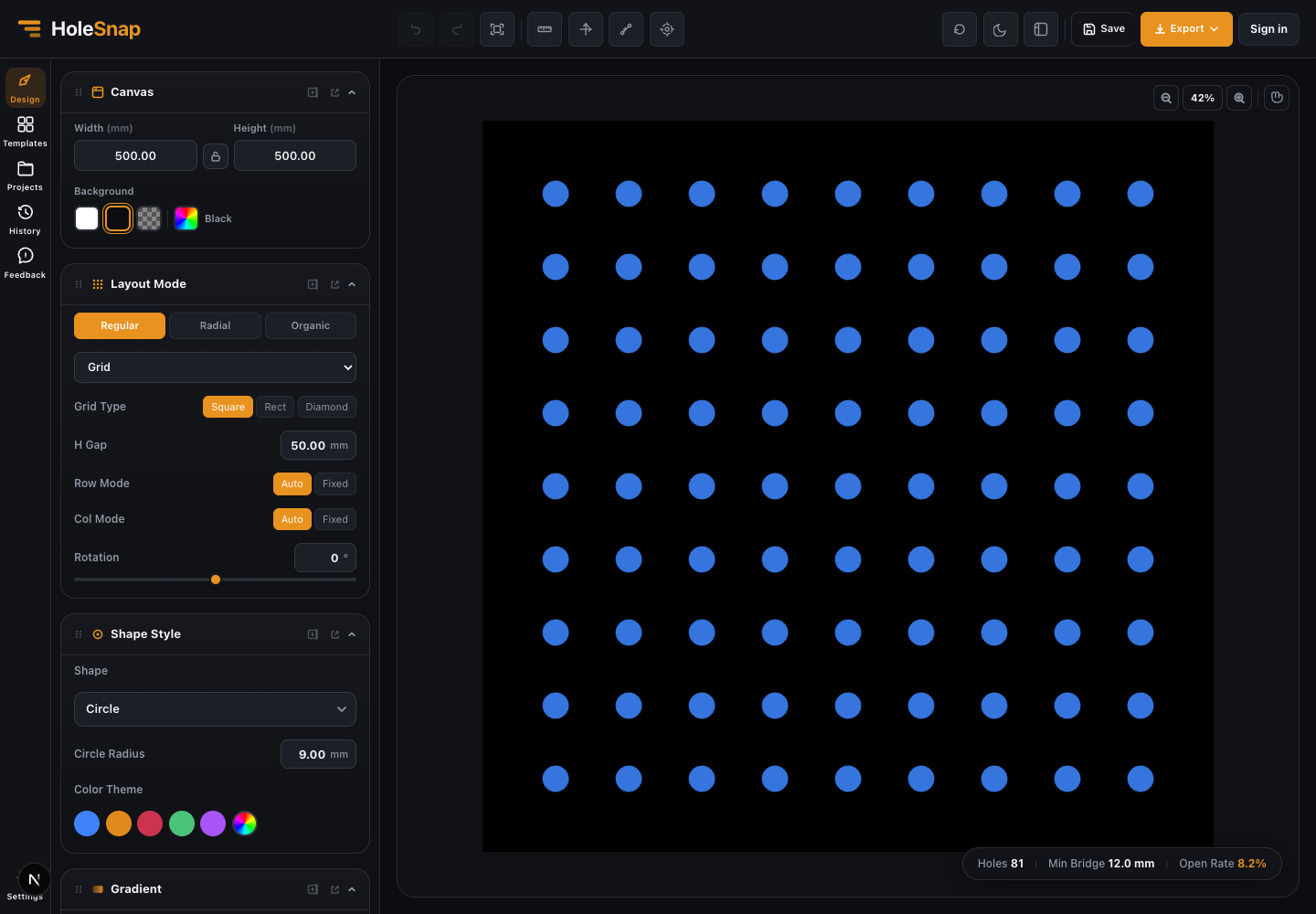
- Grid: aligned rows and columns with Square, Rect, or Diamond grid types.
- Hex: offset rows for a hexagonal arrangement.
- Staggered: rows shifted by a controlled horizontal offset.
- Along Edge: instances follow the active boundary.
- Cross-Line: two directional line systems form a crossing pattern.
Radial Layouts
The Radial family contains:
- Concentric: points arranged on rings.
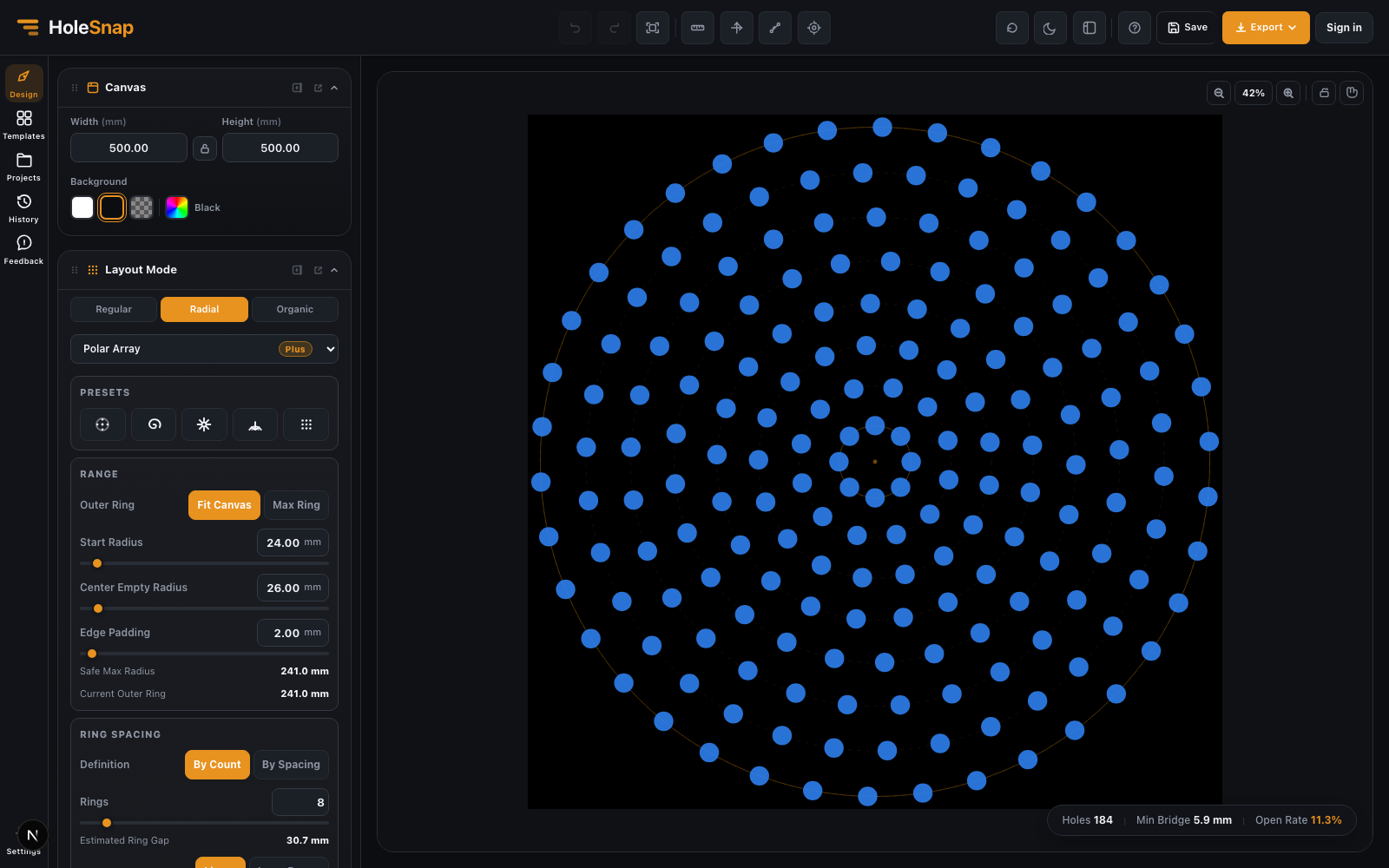
- Polar Array: configurable rings, angle ranges, points, spacing, twist, direction, and orientation. Polar Array requires Plus.
- Spiral: points distributed between a start and end radius across multiple turns.
- Fibonacci: points distributed with Fibonacci-style radial spacing.
Organic Layout
The Organic family contains Scatter, which uses item count, minimum distance, seed, random type, and clustering controls. Use a fixed seed when the same randomized result must be reproduced.
How Layout Affects the Result
Layout is the starting point for the pattern. Gradient, perturbation, displacement, and Boundary are applied afterward, so the final hole count can differ from the theoretical layout count.
Changing mode can also change which spacing controls are available. For example, Square Grid keeps horizontal and vertical gaps equal and shows one H Gap control.
Choosing a Starting Mode
- Start with Grid when dimensions and spacing need to be easy to inspect.
- Use Hex or Staggered when offset rows are part of the intended pattern.
- Use Concentric or Spiral for circular designs.
- Use Polar Array when detailed radial control is needed and Plus access is available.
- Use Scatter for controlled randomness.
- Use Along Edge when the boundary itself should guide placement.
After every mode change, check Holes, Min Bridge, Open Rate, and edge behavior.
Related Guides
- Create a Grid Pattern in Mesh Editor
- Gradient and Variation Overview
- Canvas and Preview