Convert SVG to DXF Online for Laser Cutting #
SVG is one of the easiest formats for creating vector artwork, icons, patterns, brackets, decorative panels, and simple product outlines. Many laser cutters, CNC workflows, and CAD/CAM tools, however, still prefer DXF.
That is where an online SVG to DXF converter becomes useful. Instead of opening a full CAD program just to check scale, adjust size, and export a DXF, you can upload the SVG into HoleSnap’s SVG to DXF Workbench, inspect the geometry, and export a cleaner file for fabrication.
Why Convert SVG to DXF? #
SVG is excellent for design and web graphics. It is also common in tools like Illustrator, Figma, Inkscape, Affinity Designer, and browser-based vector editors.
DXF is more common in fabrication workflows. Laser cutting services, CNC operators, sheet metal shops, and CAD programs often expect geometry in DXF because it maps more directly to cut paths, outlines, holes, and machine-readable vectors.
Converting SVG to DXF is useful for:
- Laser cut brackets and panels
- Decorative screens
- CNC router templates
- Acrylic signs
- Enclosure cutouts
- Maker projects
- Product prototypes
- Vector patterns that need CAD review
Step 1: Upload Your SVG #
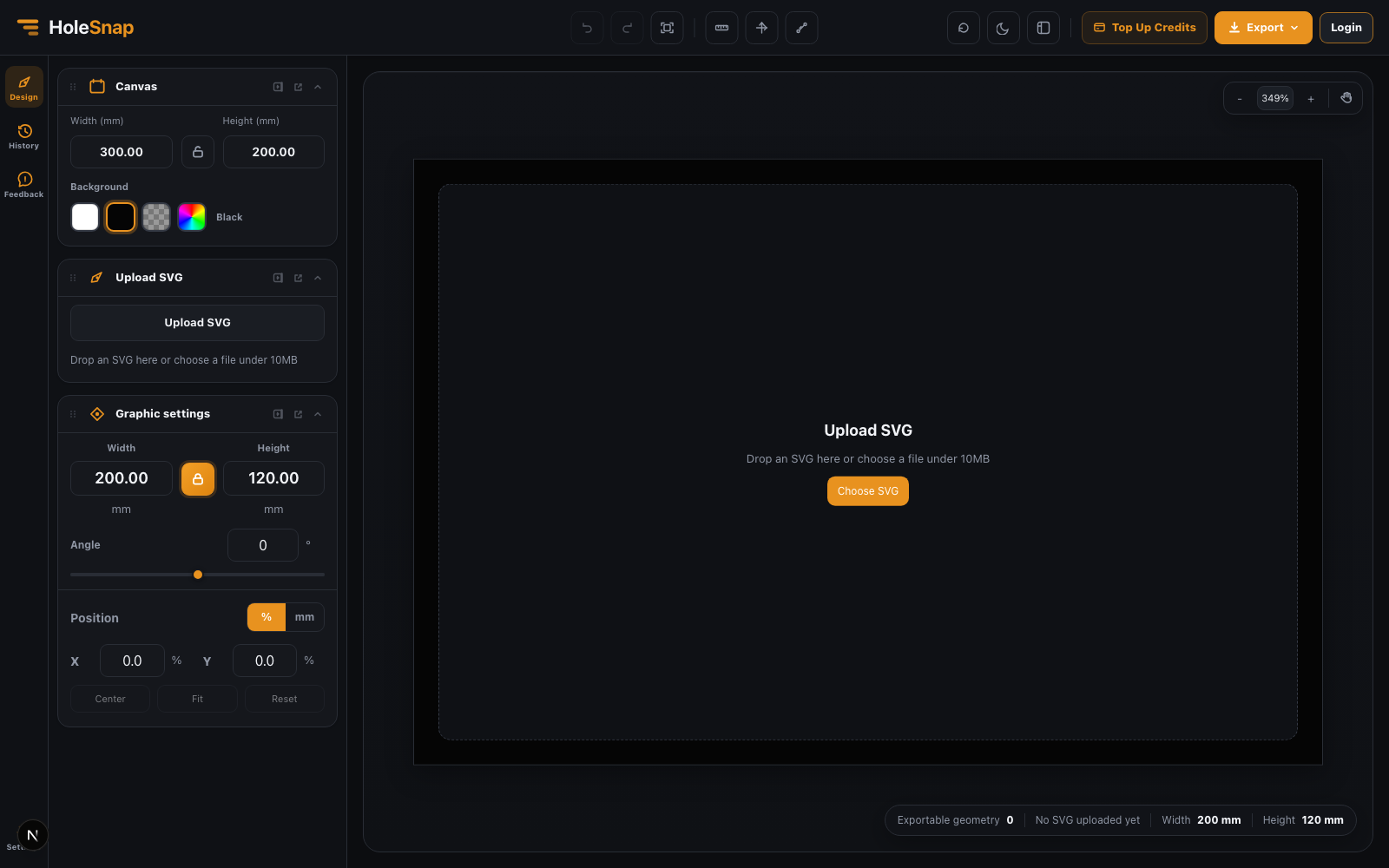
Open the SVG to DXF Workbench and upload one SVG file. The tool accepts SVG files under 10MB and parses supported vector geometry from the file.
For best results, use an SVG that already contains actual vector paths or basic shapes. The converter recognizes common geometry such as:
- path
- rect
- circle
- ellipse
- polygon
- polyline
- line
Visual-only SVG effects are not reliable for DXF fabrication. Text, embedded images, filters, masks, gradients, and similar effects should be expanded or simplified before export.
Step 2: Check the Parsed Geometry #
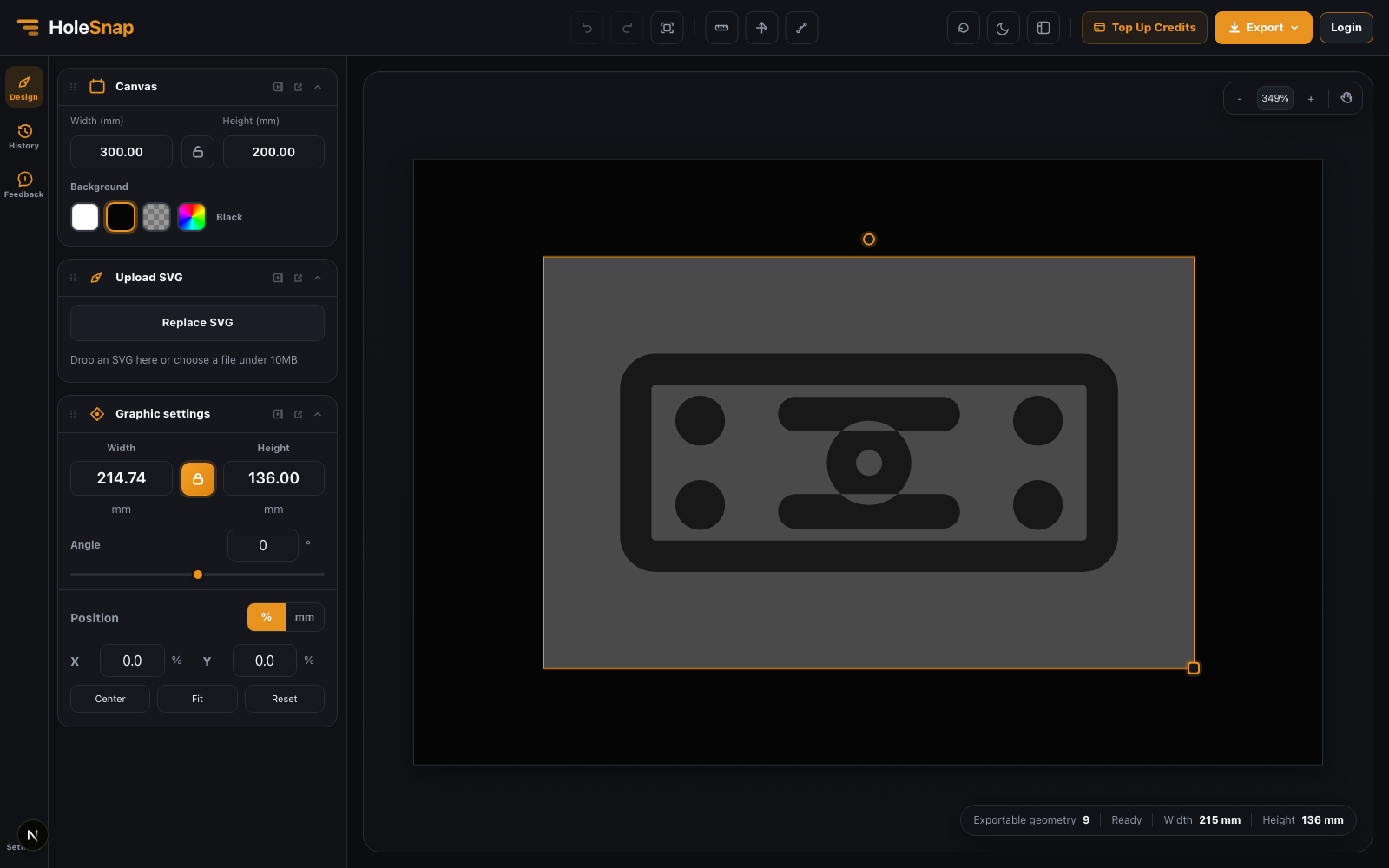
After upload, the workbench shows the imported SVG on a millimeter-based canvas. The status bar shows how much exportable geometry was recognized, and the left panel lists important export checks.
#
This step is important because an SVG preview can look correct while the underlying geometry is not fabrication-ready. For example, a logo might contain text objects, masks, or visual effects that look fine in a browser but do not translate into clean cut paths.
If the export checks warn that text, images, gradients, or other visual elements were ignored, go back to your vector editor and convert the artwork into paths before exporting SVG again.
Step 3: Set the Canvas Size in Millimeters #
The canvas controls help you define the working area in real fabrication units. For laser cutting, this is much easier than guessing pixel-to-millimeter conversion later.
Use the canvas width and height to match your intended sheet, part, or panel size. The aspect lock helps preserve the canvas ratio while resizing.
#
Typical examples:
- A small product label might use a 120 x 60 mm canvas.
- A laser cut bracket might use a 300 x 200 mm canvas.
- A decorative panel might use a 600 x 400 mm canvas.
- A CNC template might use the exact stock material dimensions.
Step 4: Adjust the Graphic Size, Position, and Rotation #
#
The Graphic settings panel lets you control the imported SVG separately from the canvas. You can set width, height, angle, and position before exporting.
This is helpful when the source SVG was created at an arbitrary pixel size. Instead of editing the file manually, you can fit the design to a precise millimeter size inside the workbench.
Use these controls when you need to:
- Resize an SVG to match a target part dimension
- Center the design on the canvas
- Rotate a bracket, logo, or decorative pattern
- Fit artwork inside a material boundary
- Preserve aspect ratio while scaling
For fabrication, always measure a known feature after export in your CAD/CAM software. The online workbench helps set the intended size, but final verification should happen before cutting material.
Step 5: Use Rulers and Axes for Inspection #
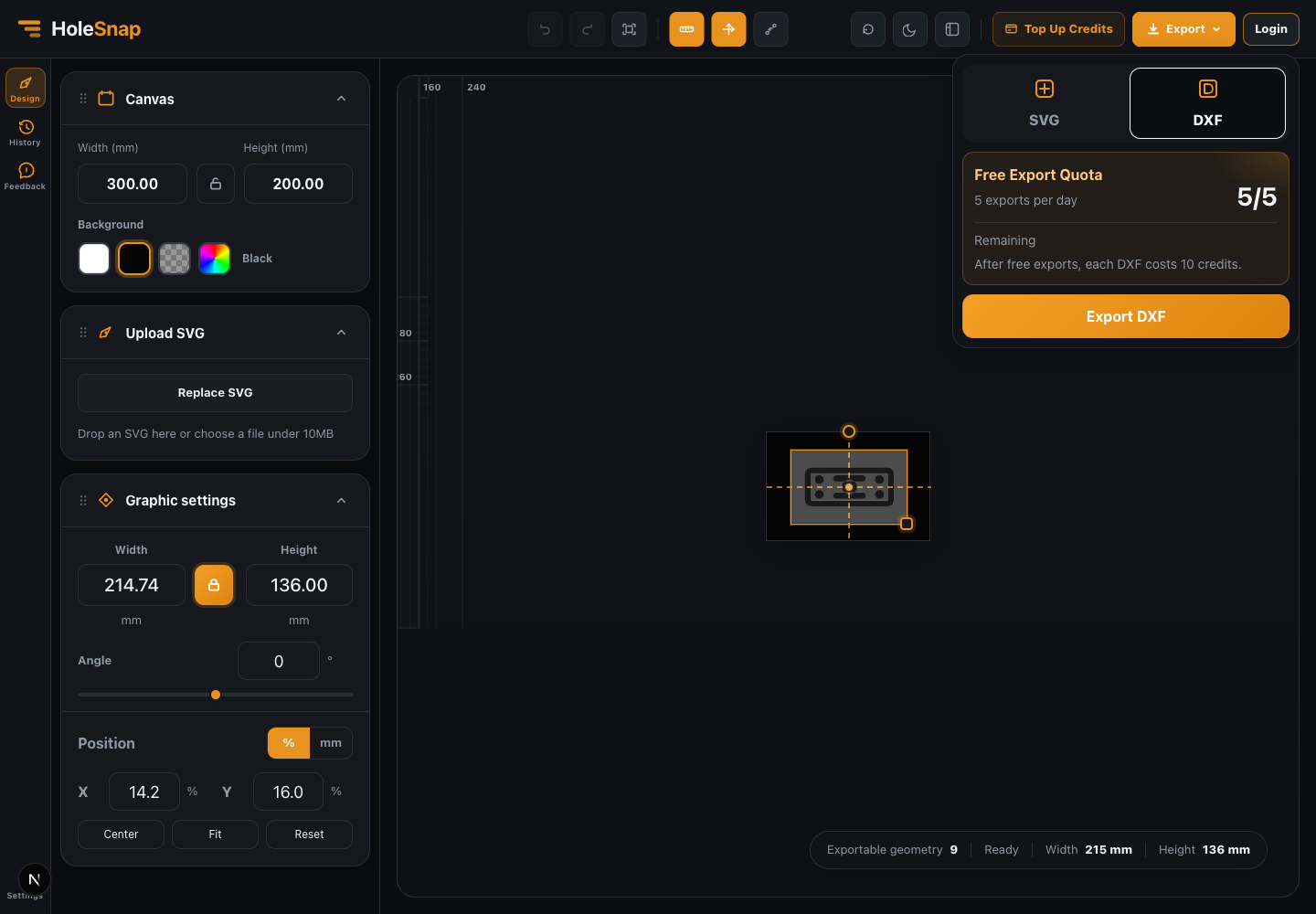
The workbench includes ruler and axis tools so you can inspect placement visually. This is useful when you need a quick check before downloading the DXF.
Use the ruler view to check:
- Whether the SVG sits inside the panel boundary
- Whether the design is centered
- Whether the part is approximately the expected size
- Whether holes and slots are located where you expect
- Whether rotation or scaling has shifted the drawing
For production jobs, this visual check can catch simple mistakes before they become wasted material.
Step 6: Export SVG or DXF #
When the file looks correct, open the export menu and choose DXF. The workbench also keeps SVG export available when you want a cleaned or adjusted vector file.
HoleSnap provides a daily free export quota. After the free quota is used, additional DXF exports use credits.
The exported DXF is intended for CAD/CAM review, laser cutting preparation, CNC workflows, and fabrication handoff. Before sending it to a shop, open the DXF in your production software and check scale, line types, duplicate geometry, closed paths, and cutting order.
Final Thoughts #
Converting SVG to DXF does not have to require a full CAD setup. If your SVG contains clean vector geometry, HoleSnap’s SVG to DXF Workbench gives you a faster path: upload the file, check supported geometry, size it in millimeters, inspect the canvas, and export DXF.
Use it when you need a quick online workflow for laser cut panels, brackets, signs, maker parts, and vector patterns that need to move from design software into fabrication.
Try the tool here: SVG to DXF Workbench