
Canvas and Preview
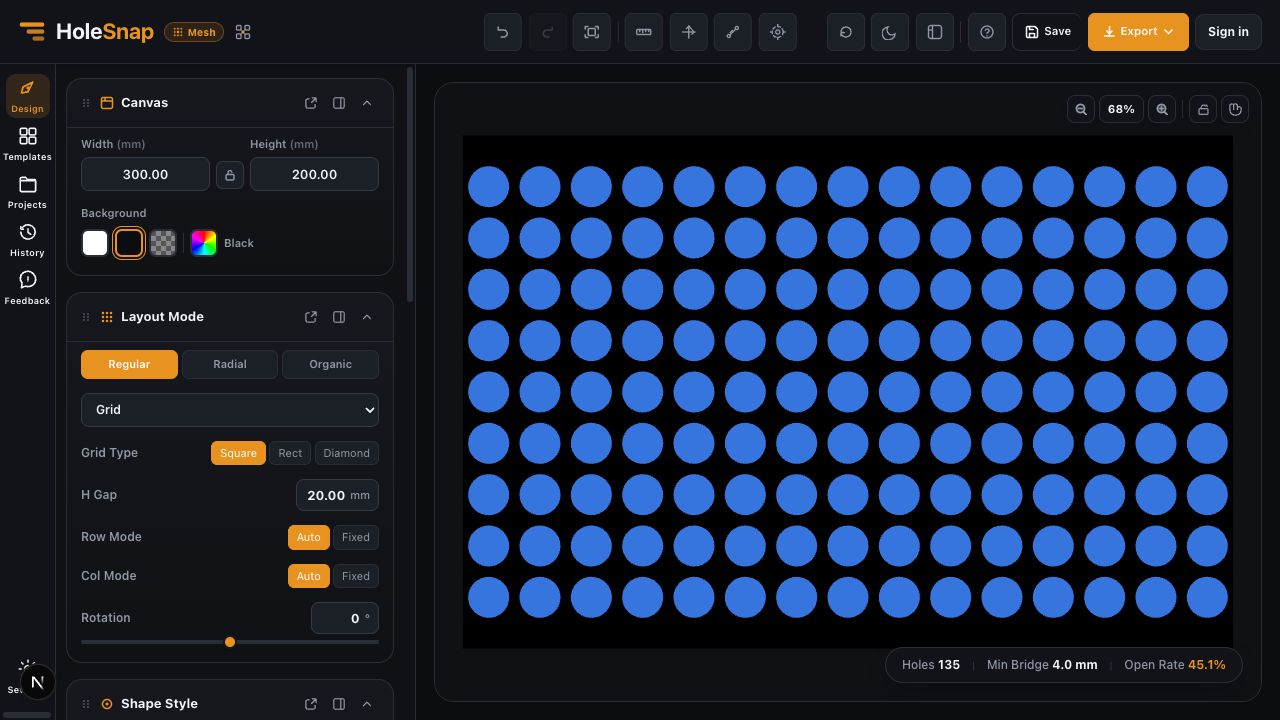
The Canvas defines the physical design area in HoleSnap Mesh Editor. The Preview shows how the current Shape, Layout, Gradient, Effects, and Boundary settings combine inside that area.
Canvas Controls
- Width and Height define the design dimensions in millimeters.
- The lock button keeps the current width-to-height ratio when one dimension changes.
- Background changes the preview contrast. Choose white, black, transparent, or a custom color.
Use the real panel dimensions when the design will be exported for CAD/CAM. Changing browser size or preview zoom does not change those physical dimensions.
Preview Controls
The canvas toolbar supports zooming, fitting the full design in view, locking the view, and panning. The top action bar also provides Ruler, Axes, Measure, and control-overlay actions.
These controls help inspect the design. They do not resize exported geometry.
Status Values
The status area shows:
- Holes: the number of pattern instances in the current result.
- Min Bridge: the estimated narrowest material between nearby openings.
- Open Rate: the estimated percentage of open geometry.
The values update after changes to radius, spacing, gradients, effects, or boundary behavior. Use them to compare versions, not as a strength or airflow guarantee.
Preview and Export
The preview and export use the current editor state, but downstream software still controls how the file is interpreted. After export, check physical dimensions, import units, board outline, contours, duplicate geometry, and trimmed edges in the target CAD/CAM application.
When the Preview Looks Wrong
- If the design looks cropped, use Fit to View before changing Canvas dimensions.
- If openings disappear near an edge, inspect Boundary type and Hide/Trim behavior.
- If the pattern becomes too dense, reduce Circle Radius or increase the active layout gap.
- If the view is hard to read, change Background without altering the geometry.
Related Guides
- How to Set Panel Size in Millimeters
- Editor Workspace Overview
- Layout Settings Overview