
Convert SVG to DXF with HoleSnap
SVG to DXF Workbench is a standalone HoleSnap tool for uploading SVG vector geometry, adjusting its size and position in millimeters, and exporting recognized geometry as DXF. It is separate from the Mesh Editor Export panel.
Before You Start
- Prepare one SVG file smaller than 10MB.
- Convert important text and visual effects to supported vector geometry in the source design application.
- Sign in before exporting DXF.
Upload the SVG
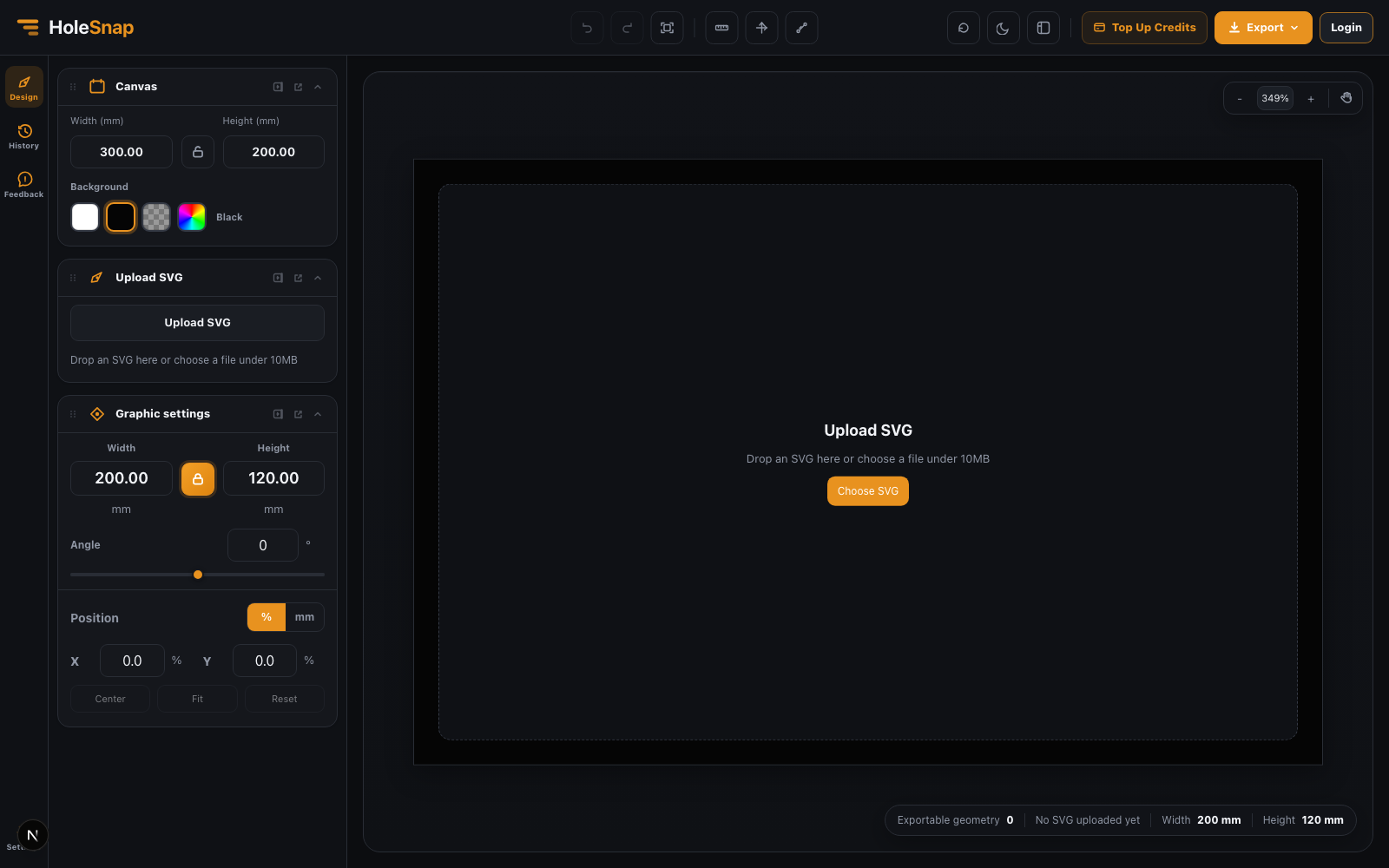
- Open
/tools/svg-to-dxf. - Drop an SVG into the upload area or choose the file.
- Wait until the parser shows Ready.
- Read Export checks and the Exportable geometry count before editing.
What the Tool Exports
The DXF converter recognizes vector geometry from:
pathrectcircleellipsepolygonpolylineline
Text, images, filters, masks, gradients, and other visual-only effects are ignored. Unsupported elements do not become DXF geometry automatically.
Adjust the Geometry
Use Canvas and Graphic settings to adjust:
- Canvas Width and Height.
- Graphic Width and Height.
- X and Y position.
- Angle.
- Ratio lock, Center, and Fit actions.
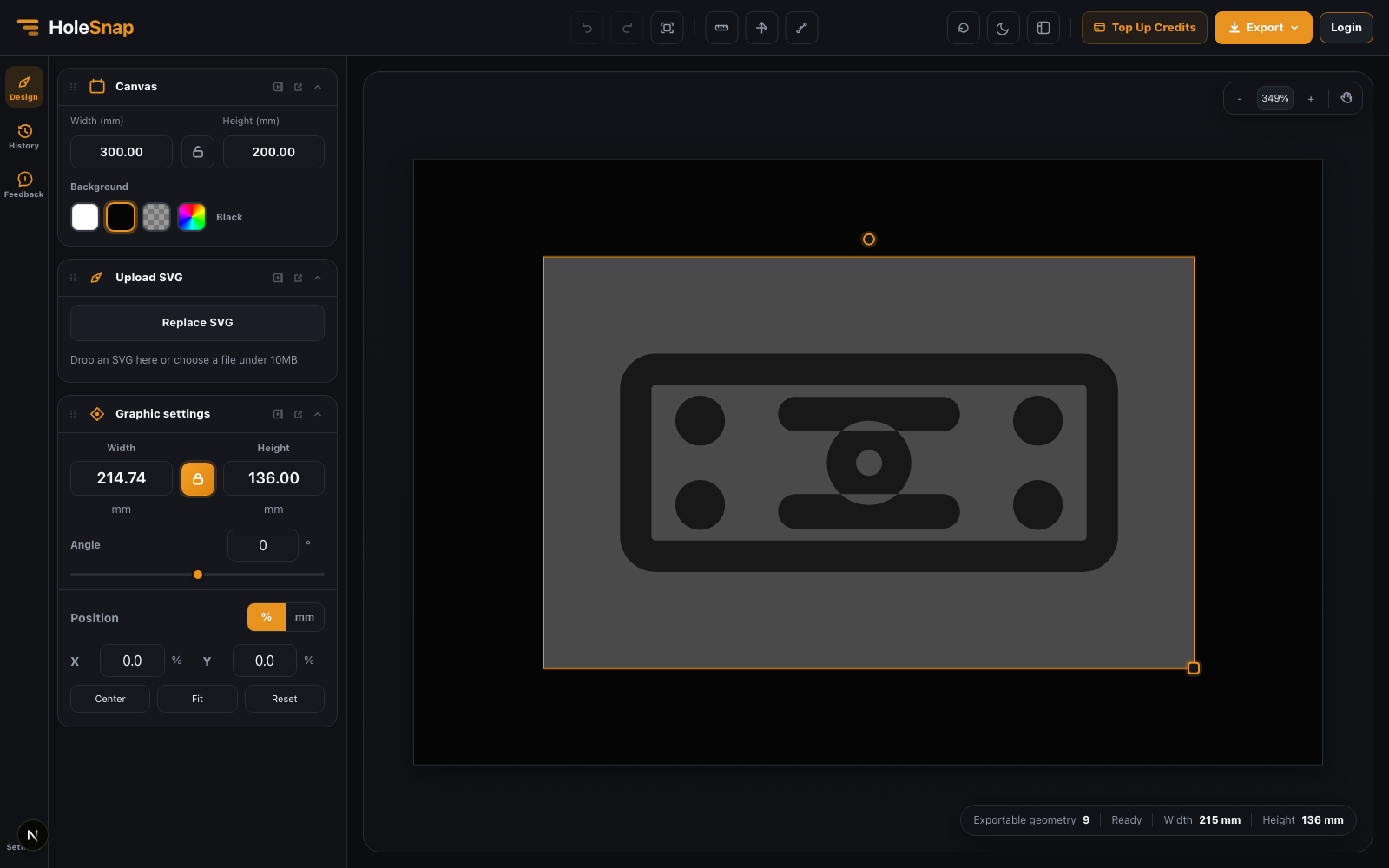
Keep the required physical dimensions visible in the workbench. A correct-looking browser preview is not enough if the downstream import units are wrong.
Export DXF
- Review Export checks again.
- Resolve unsupported-element or complex-transform warnings in the source design application when the missing geometry matters.
- Sign in and choose Export DXF.
- Wait for the export task to complete and the download to start.
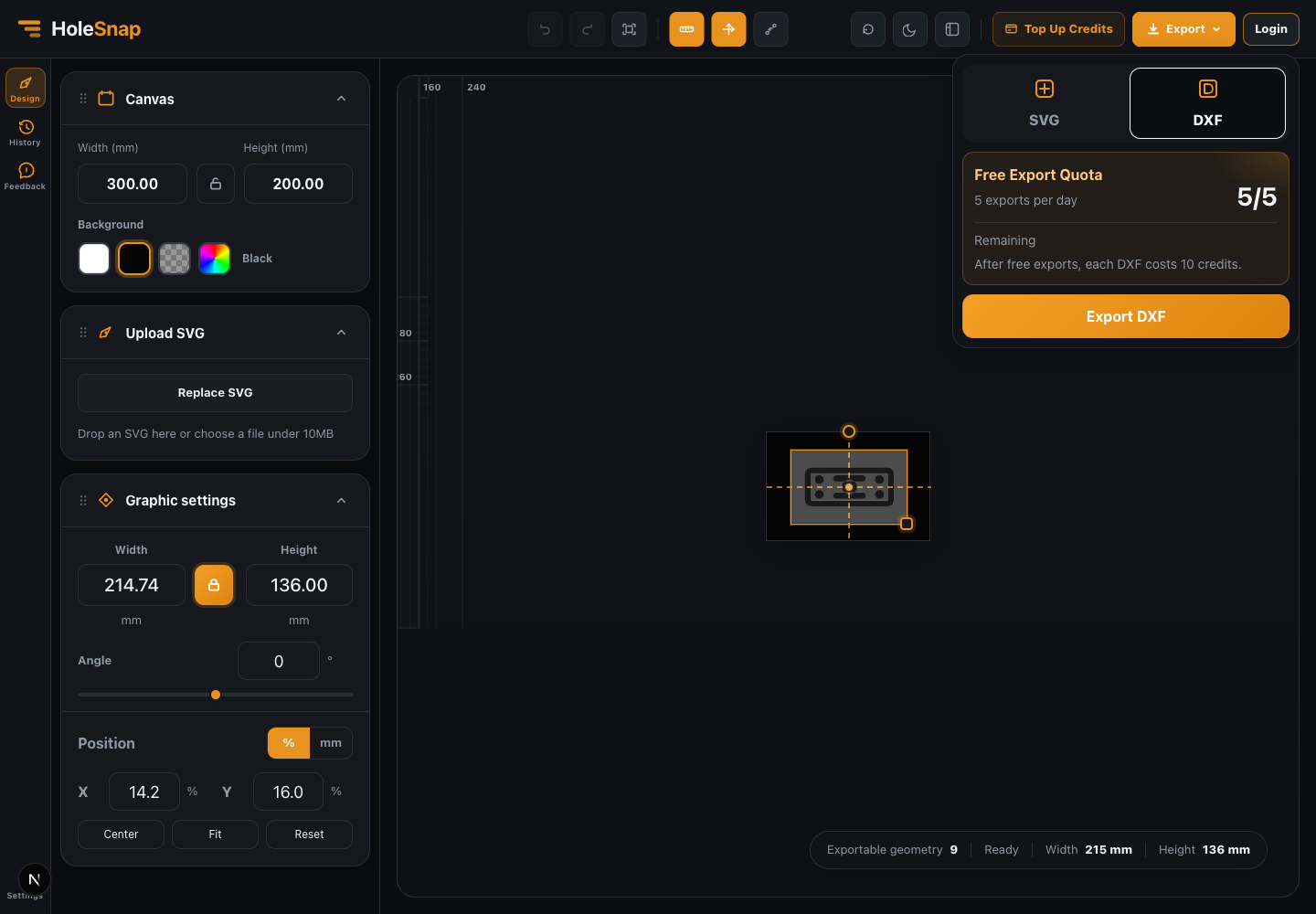
Free accounts currently share a limit of five free DXF exports per day with other DXF export workflows. After the free quota, the current tool copy states that each DXF costs 10 credits.
Verify the DXF
Open the file in the target CAD/CAM application and check:
- Physical dimensions and import units.
- Closed contours where the process requires them.
- Open paths that may have remained open.
- Duplicate lines.
- Geometry that depended on ignored text, images, masks, gradients, or filters.
- Complex transforms that should have been expanded before upload.
Troubleshooting
- No exportable geometry: Convert the source artwork to one of the supported SVG geometry elements.
- Visual details are missing: Text, images, filters, masks, and gradients are not exported as DXF geometry.
- The result has the wrong size: Check Workbench dimensions and the target application’s import units.
- A transform warning appears: Expand appearance or convert the affected objects to paths in the source application.
- Export is unavailable: Confirm sign-in, remaining free quota, or available credits.
Related Guides
- SVG to DXF for Laser Cutting: What Designers Should Check
- Mesh Editor Overview
- Check a Pattern Before Export