
Gradient and Variation Overview
Gradient changes selected properties across a Mesh Editor pattern according to position. Start with one dimension and one control so the cause of every visible change remains clear.
Gradient Dimensions
Mesh Editor currently supports:
- Size: changes the size of individual openings.
- Angle: changes rotation across the pattern.
- Shape: transitions from the base Shape toward a selected target Shape.
- Density: changes point distribution and can change the number of retained openings.
Control Types
- Point creates a local or radial influence around a position.
- Line creates a directional field across the Canvas.
- Multi-vertex line controls can create a change that follows a longer path.
Controls expose settings such as position, influence range, curve, minimum and maximum effect, and mapping behavior.
Mapping Modes
- Clamp: applies the change once inside the influence range.
- Repeat: repeats the field.
- Mirror: repeats the field while alternating direction.
Clamp is the clearest starting mode. Repeat and Mirror can create rapid changes that need closer bridge and export checks.
Variation Controls
Size also supports Noise and Pattern Rule variation. Noise uses a seed for repeatable randomized size changes. Pattern Rule follows a user-defined token sequence across rows or columns.
Gradient Is Not Displacement
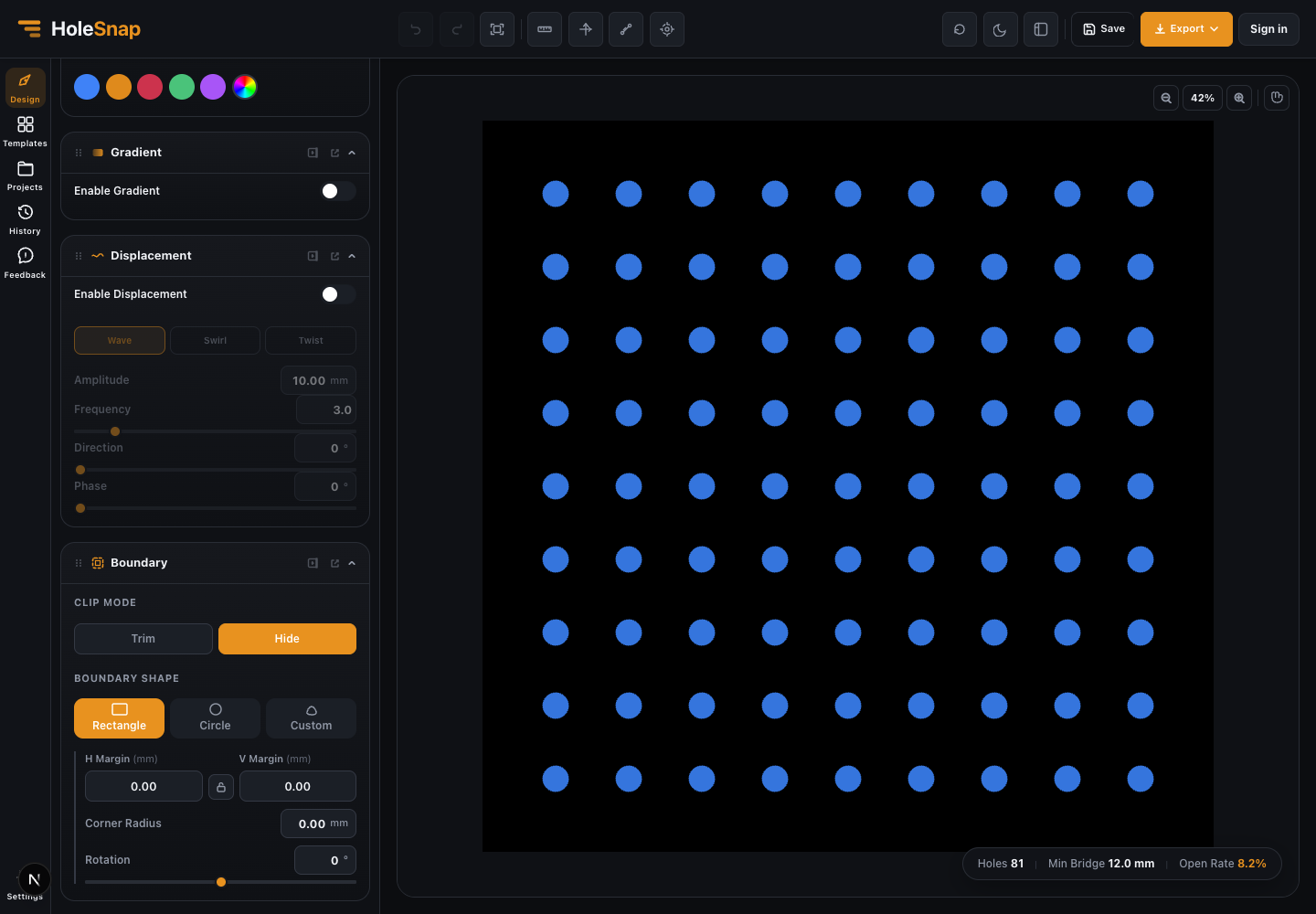
Gradient changes size, angle, shape, or density. Displacement moves positions with Wave, Swirl, or Twist. Perturbation can add randomized position, size, or angle changes. Treat them as separate stages and enable one at a time while learning.
Before Export
After applying a gradient:
- Inspect the largest and smallest openings.
- Recheck Holes, Open Rate, and Min Bridge.
- Inspect the edge and active Boundary.
- Expect complex or highly varied geometry to increase export size and processing time.
- Verify the result in the target CAD/CAM software.
Related Guides
- Create a Size Gradient Pattern
- Density Gradient Guide
- Rotation and Shape Gradients
- Perturbation and Displacement Effects