
Perturbation and Displacement Effects
Effects change the positions or orientation of an existing Layout. Use them after the base pattern is correct, because extreme settings can create overlaps, narrow bridges, and complex edge geometry.
Displacement Types
Wave
Wave moves instances with Amplitude, Frequency, Direction, and Phase. It is useful when the pattern should follow a repeating directional motion.
Swirl
Swirl rotates positions around a center using Strength, Radius, and center coordinates.
Twist
Twist applies a rotational displacement around a selected center. Strength controls the amount of twist.
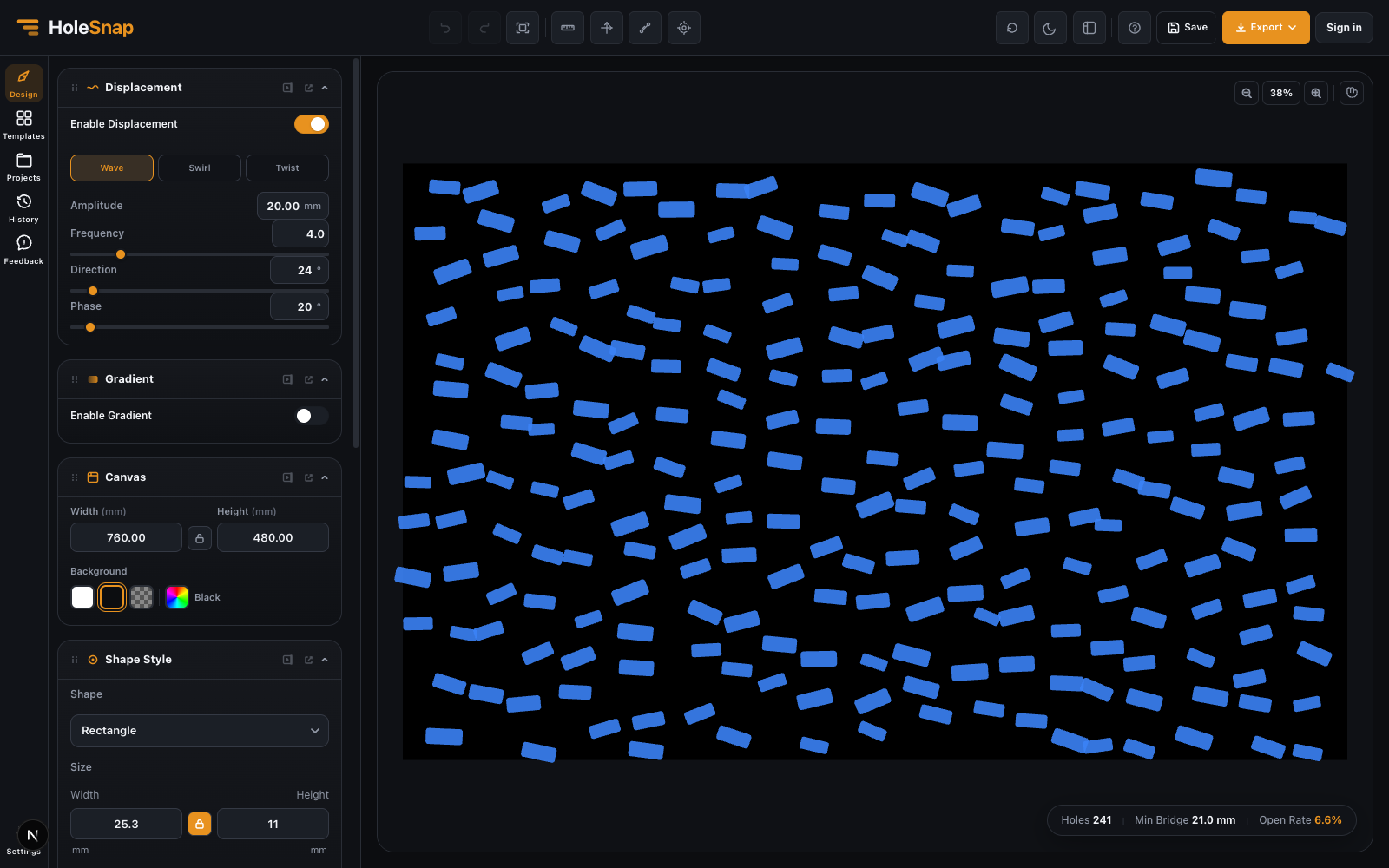
The screenshot uses Wave with Amplitude 20 mm, Frequency 4.0, Direction 24°, and Phase 20° on rectangular openings.
Apply Displacement
- Create and verify the base Layout.
- Open Displacement and enable it.
- Choose Wave, Swirl, or Twist.
- Increase one parameter gradually while watching the Canvas.
- Use the status area to monitor Holes, Min Bridge, and Open Rate.
- Inspect the active Boundary and all edges.
Perturbation
Perturbation adds randomized changes to position, size, or angle. A Seed makes the result repeatable. Start with small amounts and change one channel at a time so you can identify what produced the result.
Perturbation is not an automatic manufacturing optimization. It can reduce local bridge width even when the overall pattern looks balanced.
Before Export
- Inspect the closest pair of openings.
- Check whether moved openings cross or approach the Boundary.
- Keep the Seed when the design must be reproduced.
- Expect high counts and complex effects to increase export processing time.
- Verify all geometry in the target CAD/CAM software.
Troubleshooting
- The pattern is too distorted: Reduce Amplitude, Strength, or perturbation amounts.
- Openings overlap: Increase base spacing or reduce the effect.
- The result changes unexpectedly: Record and restore the Perturbation Seed.
- Edge geometry is cut: Review Boundary Hide/Trim behavior after applying the effect.
Related Guides
- Gradient and Variation Overview
- Size Noise and Pattern Rules
- Layout Settings Overview