Skip to content
  • Editor
  • tools
    • Perforated Panel Designer
    • Image to Hole Pattern
    • SVG to DXF Converter
  • Blog
  • Support

Workspace

1
  • Workspace Overview: Top Bar, Sidebar, and Canvas

Templates

1
  • Use Templates to Start a Perforated Panel Design

Projects

1
  • Save and Reopen a HoleSnap Project

Canvas and Preview

2
  • How to Set Panel Size in Millimeters
  • Canvas and Preview

Hole Shape and Style

1
  • Choose a Hole Shape for Your Perforated Panel

Layout Settings

2
  • Layout Settings Overview
  • Grid Array| Create Perforated Patterns with Grid Array in HoleSnap

Getting Started

4
  • Key Editor Terms
  • Basic Perforated Panel Workflow
  • Editor Workspace Overview
  • Getting Started with HoleSnap

Gradient and Variation

7
  • Perturbation and Displacement Effects
  • Size Noise and Pattern Rules
  • Rotation and Shape Gradients
  • Density Gradient Guide
  • Gradient Control Points and Lines
  • Create a Size Gradient Pattern
  • Gradient and Variation Overview

Tools

1
  • Tools |Convert SVG to DXF
View Categories
  • Home
  • Support
  • Gradient and Variation
  • Size Noise and Pattern Rules

Size Noise and Pattern Rules

1 min read

Size Noise and Pattern Rules #

Overview #

Size variation tools let you create controlled differences between holes without placing every change manually. HoleSnap includes two size variation modes: Noise and Pattern Rule.

Use these tools when a regular layout feels too uniform but a full gradient is not the right effect.

Noise Variation #

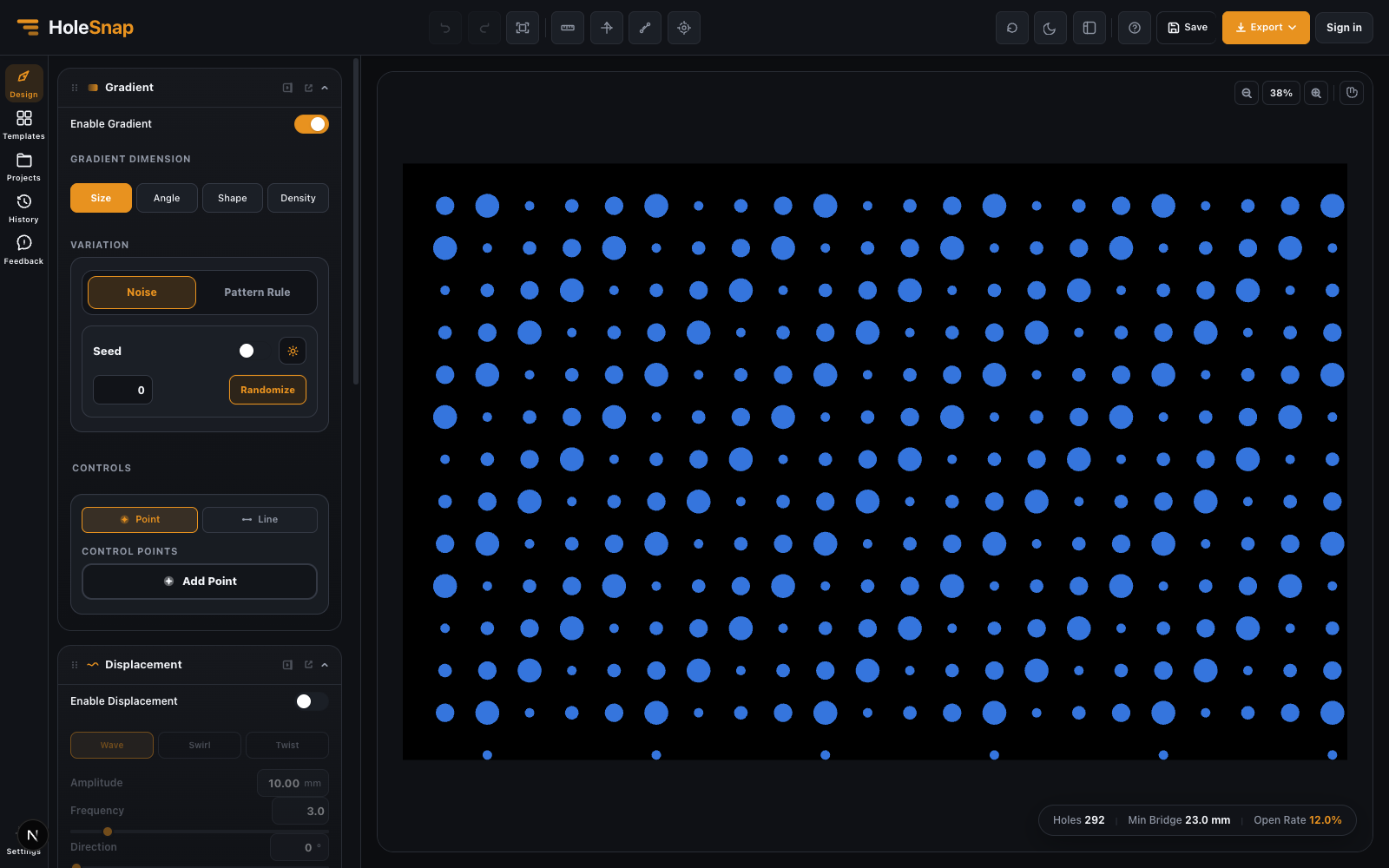
Noise variation randomly changes hole size within a controlled range.

Use it for:

  • Organic decorative screens.
  • Acoustic panels with less rigid visual rhythm.
  • Natural-looking perforation fields.
  • Breaking up a perfectly regular grid.

Create Noise Variation #

  • Open Gradient.
  • Turn on Enable Gradient.
  • Choose Size in Gradient Dimension.
  • In Variation, choose Noise.
  • Turn on Noise.
  • Set a Seed or click Randomize.
  • Open Noise Settings.
  • Adjust minimum and maximum size scale.

The seed makes the random result repeatable. If you use the same seed and settings, the pattern will stay consistent.

Noise Settings #

Use the min and max scale values to control the variation range.

For example:

  • 0.8x to 1.2x creates subtle variation.
  • 0.5x to 1.5x creates stronger variation.
  • Very large ranges can create tiny or oversized holes that are harder to fabricate.

Start subtle, then increase the range if the effect is too quiet.

Pattern Rule Variation #

Pattern Rule creates a repeating size sequence based on digits 1, 2, 3, and 4.

Each digit maps to a size preset. The rule then repeats by row or column.

Pattern Rule size variation in the HoleSnap editor

For example:

  • 12 creates an alternating pattern.
  • 123 creates a three-step rhythm.
  • 1124 creates a more uneven sequence.

Pattern Rule works best with regular layouts such as Grid, Hex, and Staggered.

Create a Pattern Rule #

  • Open Gradient.
  • Turn on Enable Gradient.
  • Choose Size.
  • In Variation, choose Pattern Rule.
  • Turn on Pattern Rule.
  • Enter a rule using digits 1, 2, 3, and 4.
  • Choose Row or Column direction.
  • Adjust Offset to shift the start of the sequence.
  • Adjust Phase Step to shift each row or column.
  • Set the size presets for each digit.

Row vs Column #

Use Row when you want the sequence to run across each row.

Use Column when you want the sequence to run down each column.

For diagonal or woven effects, combine a short rule with Phase Step.

Offset and Phase Step #

Offset shifts the starting point of the rule.

Phase Step shifts each row or column by a set number of positions. This can create diagonal motion or woven effects.

Use small values first. A Phase Step of 1 is often enough to make the pattern feel more dynamic.

Noise vs Pattern Rule #

Use Noise when you want organic randomness.

Use Pattern Rule when you want repeatable visual rhythm.

Noise is good for natural effects. Pattern Rule is better for controlled product or architectural patterns.

Fabrication Checks #

Before exporting:

  • Check the smallest holes.
  • Check the largest holes.
  • Confirm minimum bridge width.
  • Make sure repeated large holes do not create weak bands.
  • Test a smaller panel if the full pattern is very dense.
Updated on May 7, 2026

What are your Feelings

  • Happy
  • Normal
  • Sad

Share This Article :

  • Facebook
  • X
  • LinkedIn
  • Pinterest
Perturbation and Displacement EffectsRotation and Shape Gradients

Powered by BetterDocs

Table of Contents
  • Size Noise and Pattern Rules
    • Overview
    • Noise Variation
    • Create Noise Variation
    • Noise Settings
    • Pattern Rule Variation
    • Create a Pattern Rule
    • Row vs Column
    • Offset and Phase Step
    • Noise vs Pattern Rule
    • Fabrication Checks

Create Cleaner Perforated Panel Files

Use HoleSnap to generate accurate perforated panel DXF files online, then come back here whenever you need design guidance, fabrication tips, or answers.

© 2026 Bruno Guevara All Rights Reserved

Pinterest
  • English