
Density Gradient Guide
Density Gradient changes how pattern positions are distributed across the Canvas. Unlike Size Gradient, it can change local spacing and the number of retained openings rather than only changing their dimensions.
Steps
- Build a base pattern and check its current Holes, Min Bridge, and Open Rate.
- Open Gradient and enable it.
- Select Density under Gradient Dimension.
- Select Point and add one control point.
- Move the point to the region that should become denser or more sparse.
- Adjust Influence Radius.
- Keep Mapping Mode on Clamp while tuning the first result.
- Adjust Gradient Strength gradually and use Reverse when the direction should swap.
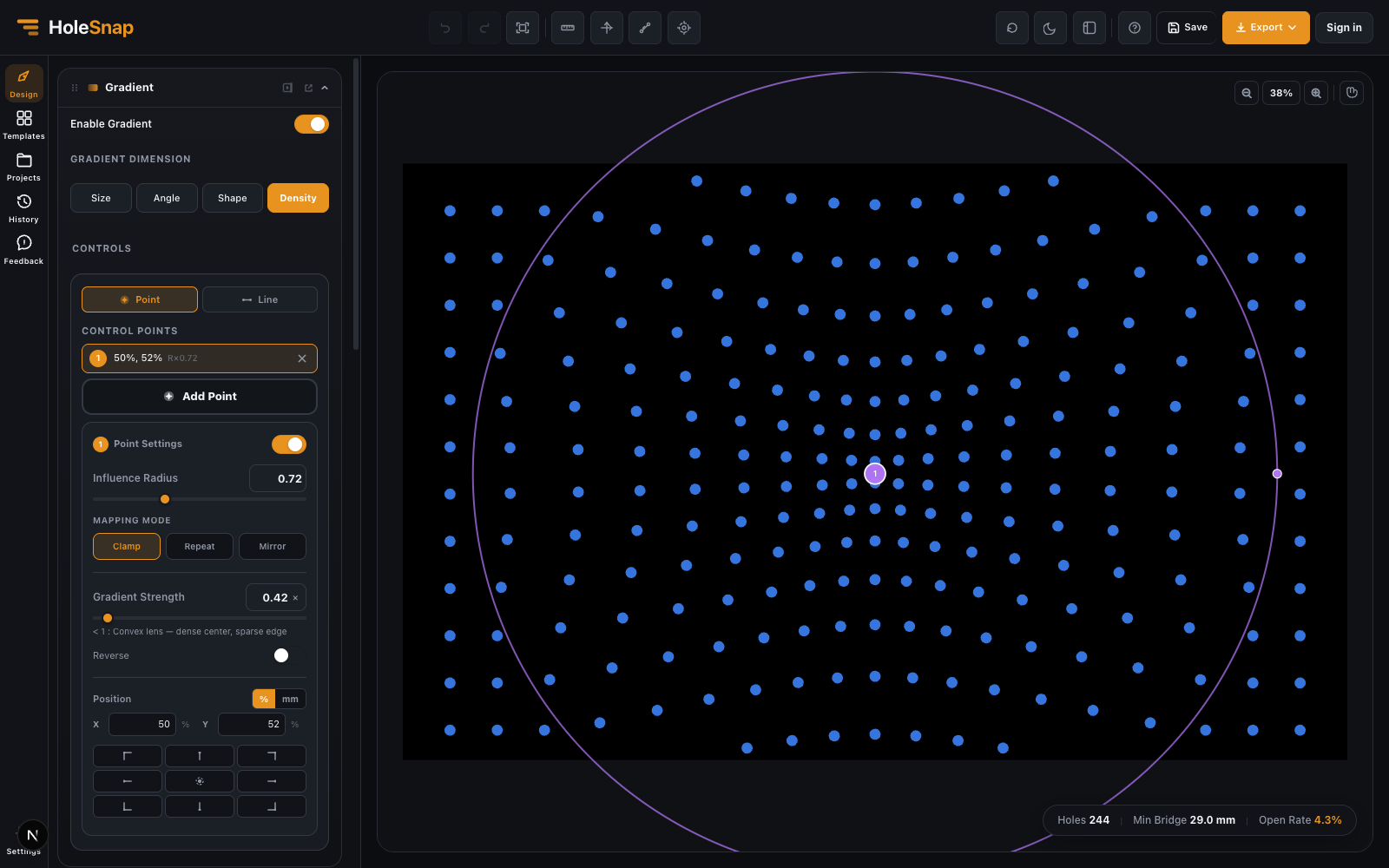
Read the Example
The screenshot uses a Point near the center, an Influence Radius of 0.72, and Gradient Strength 0.42. The resulting distribution is denser near the control and sparser toward the outer area.
The displayed result contains 244 holes, a 29.0 mm Min Bridge estimate, and a 4.3% Open Rate for that particular base pattern. Use these values only to understand the screenshot, not as design targets.
Density Versus Size
- Use Density to redistribute positions and change local spacing.
- Use Size when positions should remain recognizable but opening dimensions should vary.
- Do not enable both until each one works correctly on its own.
Before Export
Inspect the densest region first. Density changes can create unexpectedly close openings or sparse edge areas. Recheck the active Boundary because filtered points can change the final count.
Troubleshooting
- The center becomes sparse instead of dense: Use Reverse or move Gradient Strength across its neutral value.
- The pattern feels random: Confirm the active dimension is Density and disable unrelated Noise or Scatter settings.
- The hole count changes unexpectedly: Density and Boundary can both add or remove retained positions; compare with both features separately.
- The edge looks abrupt: Increase Influence Radius or use a smoother curve.
Related Guides
- Create a Size Gradient Pattern
- Gradient and Variation Overview
- Canvas and Preview