
Save and Reopen a HoleSnap Project
Mesh Editor project management currently requires sign-in and Plus access. Use Projects to save, load, update, rename, and delete an editor state associated with the account.
Save a New Project
- Sign in with an account that has Plus access.
- Build or open the design you want to keep.
- Select Save in the top action bar.
- Enter the requested project information and confirm the save.
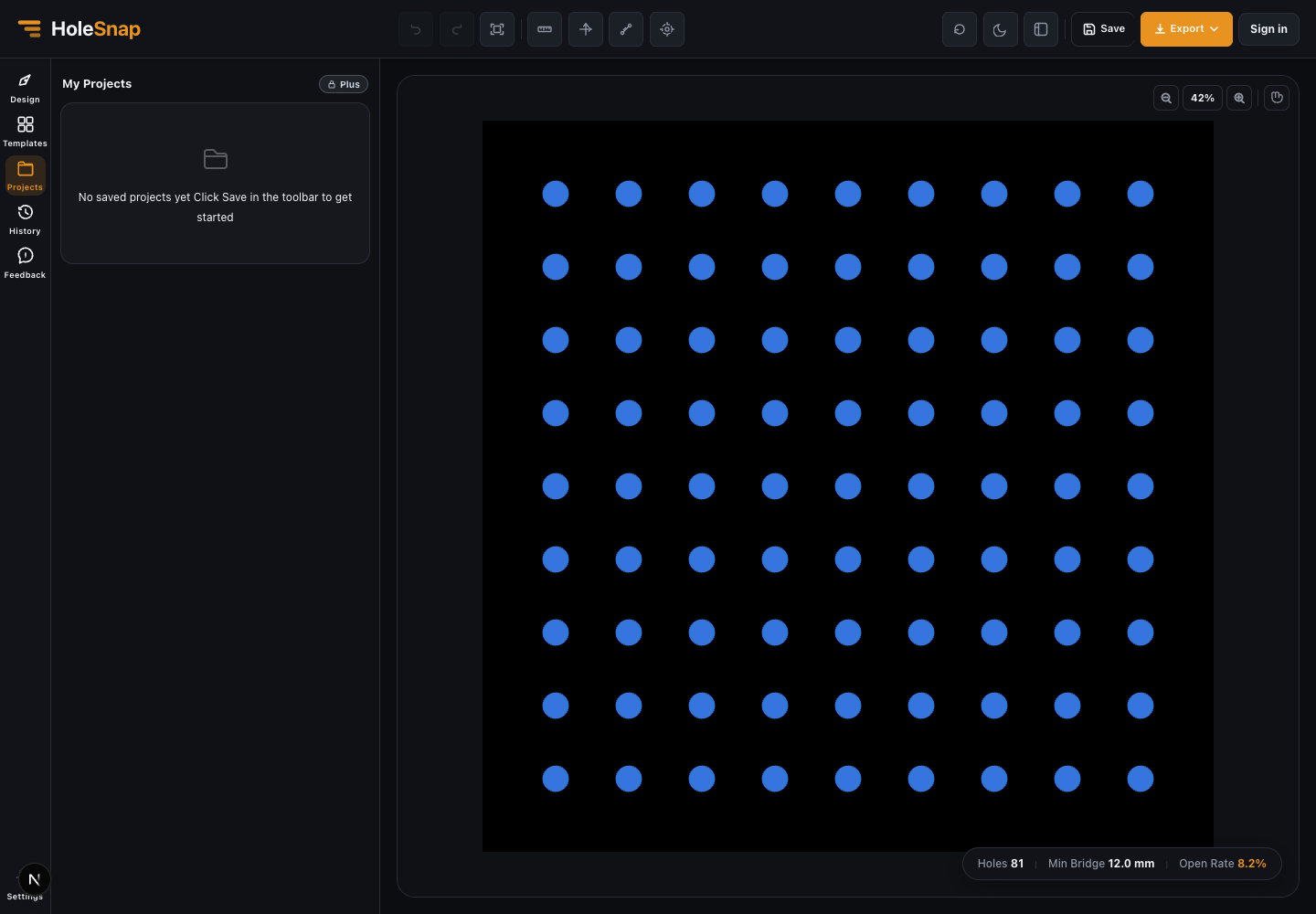
- Open Projects in the side navigation and confirm that the project appears.
Reopen a Project
- Sign in with the same account.
- Open Projects.
- Select the project you want to load.
- Confirm that the Canvas, Shape, Layout, Gradient, Effects, and Boundary state match the saved version before continuing.
Loading a project changes the current editor state. Save current work first when it should not be replaced.
Update or Organize Projects
The current project workflow supports updating the active project and project-management actions such as rename and delete. Use clear names that identify the application, dimensions, and revision, for example mesh-300x200-grid-v2.
Do not rely on undocumented project counts, automatic conflict merging, or rollback behavior. Those limits and recovery rules are not fixed in the public help source.
Local State and Cloud Projects
The editor uses local state internally and communicates with cloud project APIs, but this does not mean free users have a separate public local-project manager. The visible Save, load, rename, and delete workflow is gated by sign-in and Plus.
Troubleshooting
- Save opens a sign-in or upgrade prompt: Project management requires authentication and Plus.
- A project is not listed: Confirm the account, plan, and network connection, then reopen Projects.
- The wrong design loaded: Stop editing, use Undo if applicable, or reopen the intended saved project.
- Changes were not preserved: Confirm that the update completed before closing the page.
Related Guides
- Use Templates to Start a Perforated Panel Design
- Editor Workspace Overview
- Export SVG, DXF, or STP from Mesh Editor