Image to Perforation: Online Crop and Adjust Tool | HoleSnap
Crop, adjust, and turn images into custom perforation patterns online with HoleSnap Image to Perforation—no separate image editor required.
Crop and adjust images before making perforation patterns
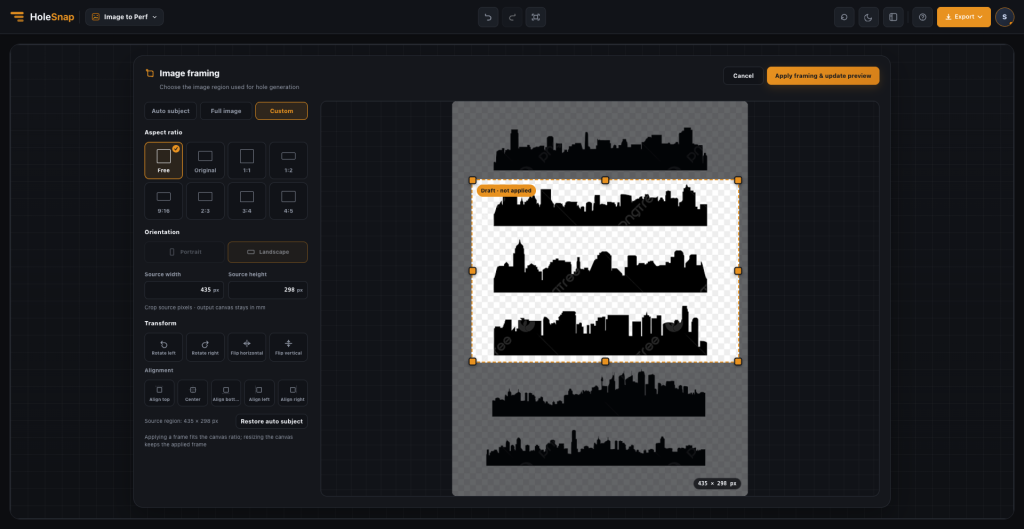
Need to turn an image into a perforation pattern without switching between different applications? HoleSnap’s Image to Perforation tool now lets you crop and adjust the source image directly in the browser before converting it into perforation geometry.
Upload a JPG, PNG, or WebP image, frame the part that matters, fine-tune its appearance, and create a custom perforation pattern in one workflow.
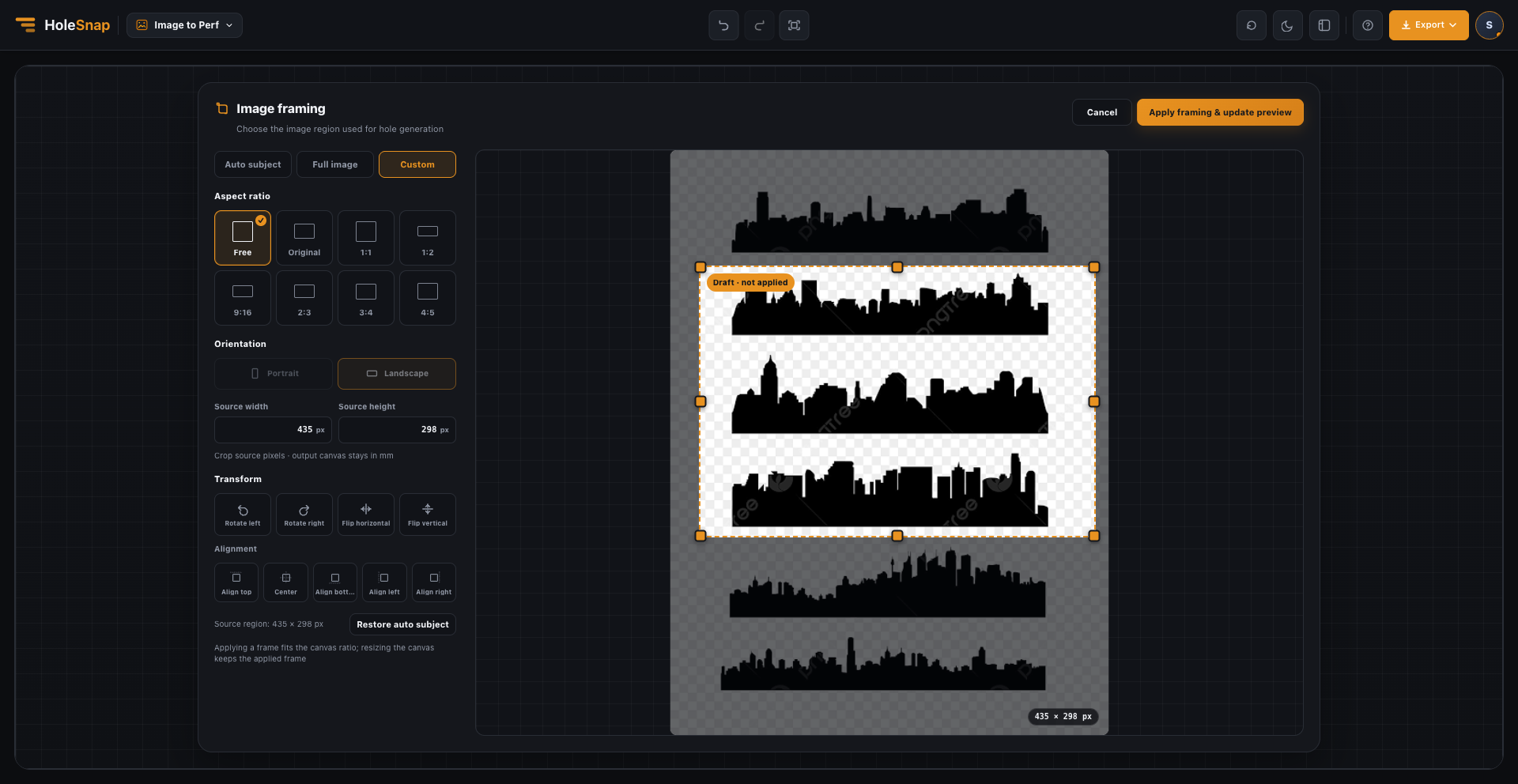
Crop the source image inside the browser
Cropping helps keep the important part of an image inside the panel. In Image framing, choose Auto subject, Full image, or Custom, then set the aspect ratio, orientation, transform, and alignment before applying the frame.
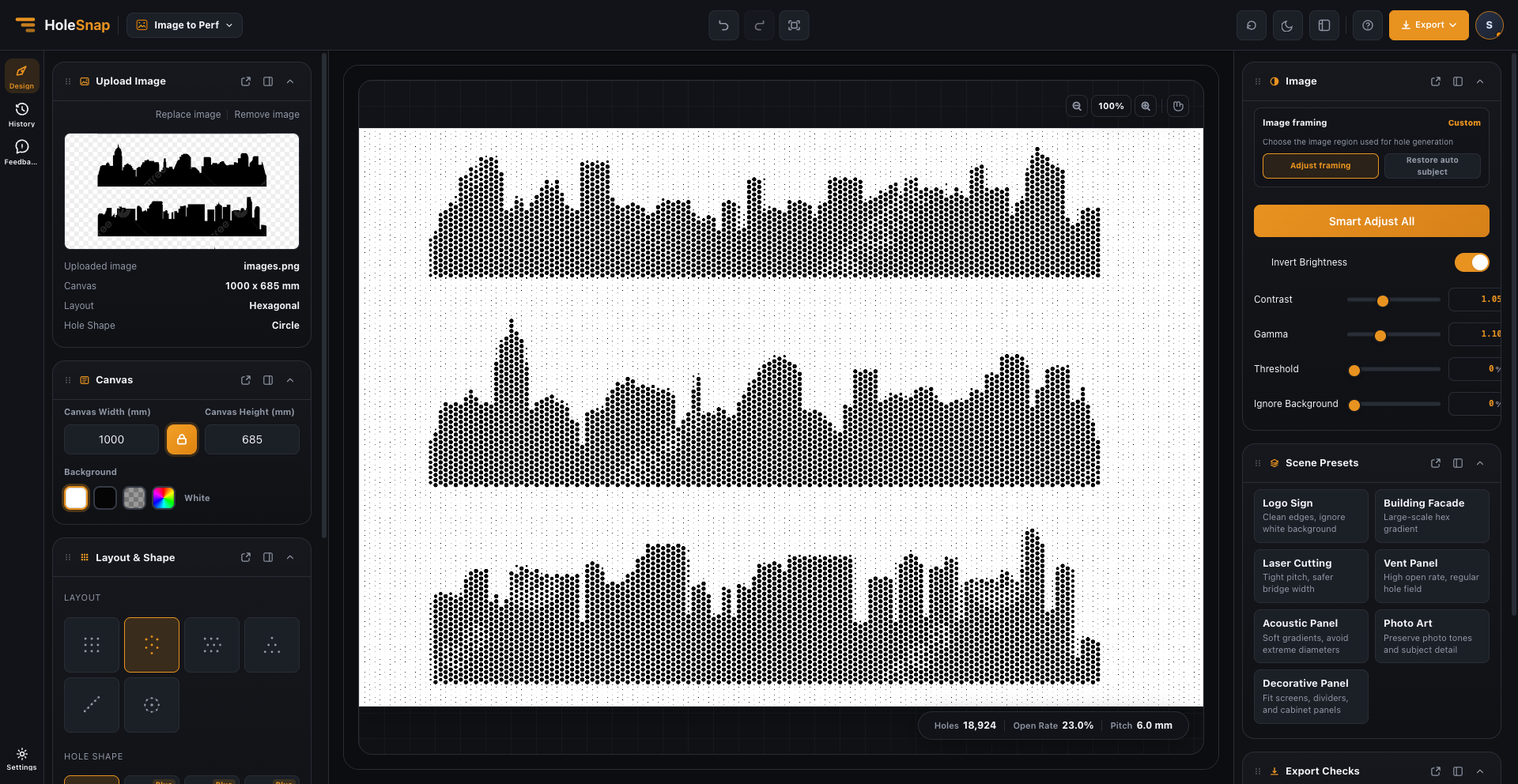
The preview updates after the frame is applied, so you can see whether the selected region reads well at the intended panel proportion.
Adjust contrast and tonal detail
The image controls help prepare the source before it becomes geometry. Use Smart Adjust All for a quick starting point, then refine Invert Brightness, Contrast, Gamma, Threshold, and Ignore Background as needed.
These controls are useful when the source contains extra space, uneven lighting, or details that would make the final perforation harder to read. You can strengthen or soften contrast, tune the tonal range, and simplify the background without opening a separate image-editing application.
Convert the edited image into perforation geometry
Once the image is prepared, Image to Perforation turns it into an adjustable perforation pattern. Use the live preview to compare the canvas, layout, hole shape, pitch, density, and hole-size range. The preview also shows how hole count, open rate, and pitch change as you refine the design.
The result can be explored as a starting point for:
- perforated panels and decorative screens;
- facade graphics, privacy panels, and interior partitions;
- CNC or laser-cut design studies and small prototypes;
- product enclosures, vents, and other image-led experiments.
Check the file before fabrication
PNG is useful for presenting a concept, while SVG and DXF can support vector editing and early CAD/CAM or laser-cutting review when available in your workflow. Before fabrication, check the exported geometry, units, scale, material thickness, minimum bridge width, edge clearance, and any downstream engineering requirements.
Image to Perforation makes the first design iteration faster; it does not replace structural, ventilation, acoustic, material, or code validation.
For parameter details, see How to Turn a Cat Photo into a Perforated Pattern. For a larger facade example, see Image to Perf for Perforated Facade Design.
Common questions
Can I crop an image without separate image-editing software?
Yes. Image framing, image adjustments, and the perforation preview are part of the browser workflow.
Does Image to Perforation replace CAD/CAM review?
No. It is a design and geometry starting point. Review units, scale, paths, bridge width, material, and project-specific engineering requirements before fabrication.
What can I use the workflow for?
It can help explore decorative screens, perforated panels, facade graphics, privacy panels, product enclosures, vents, CNC studies, and laser-cut prototypes.
Try the updated tool
Open HoleSnap Image to Perforation, upload an image, and try the new crop and adjustment workflow in your browser.
We’d love to hear your feedback.