
HoleSnap Flow Scene Adds Growth Network for Organic Branching Patterns
Create branching, vein-like vector patterns in Flow Scene with Growth Network. Choose a composition, tune the structure and stroke, then export SVG or DXF.
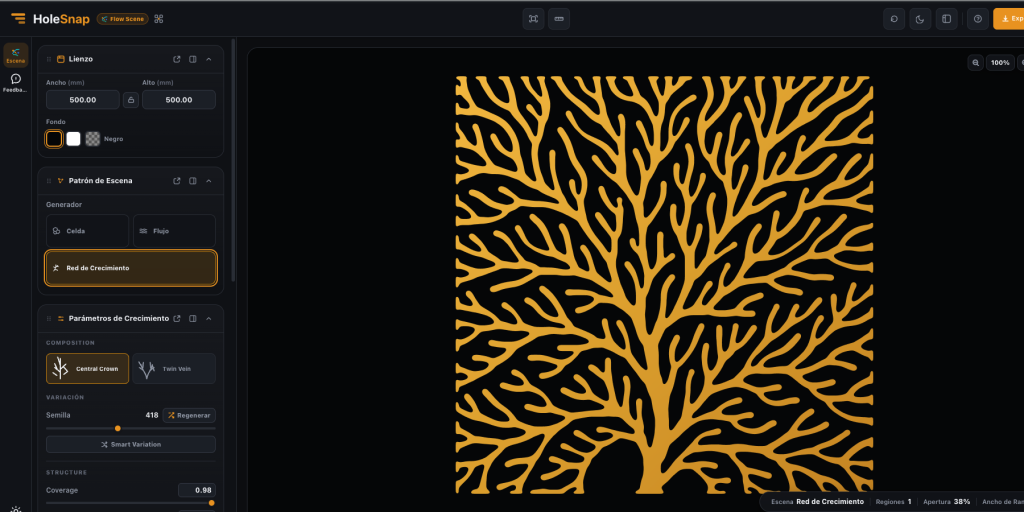
HoleSnap Flow Scene now includes Growth Network, a new generator for branching and vein-like vector patterns.
It is designed for organic grilles, decorative panels, privacy screens, product surfaces, and other designs that need a natural branching structure instead of a regular grid or a simple flow field.
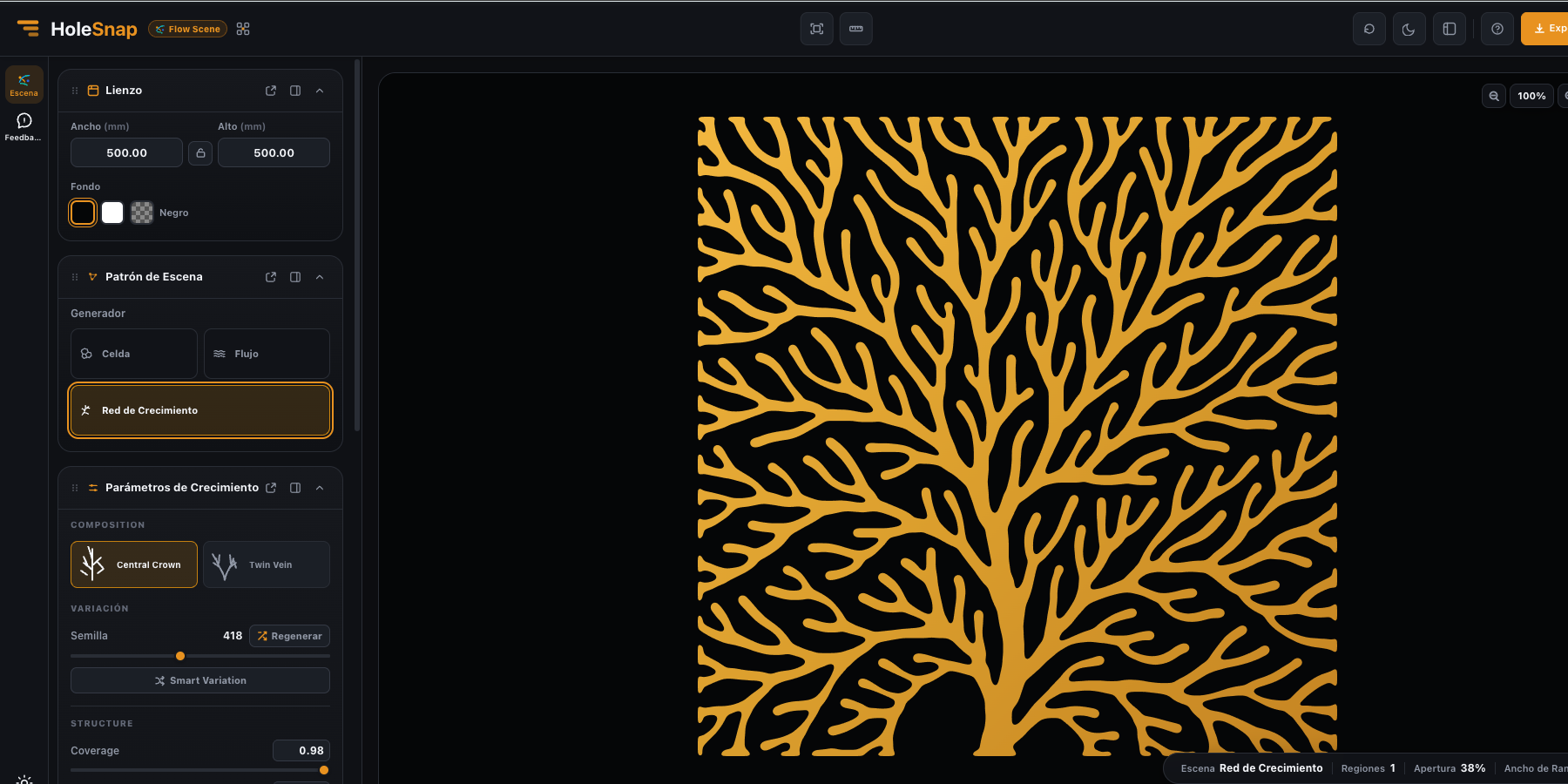
Choose a composition
Growth Network currently includes two starting compositions:
– Central Crown builds a strong central trunk and branches outward across the canvas.
– Twin Vein creates two connected branching structures that spread toward opposite sides.
Choose the composition that best matches the intended panel or surface, then use the live preview to evaluate the overall rhythm.
Tune the branching structure
The new generator gives you direct control over the way the network fills the canvas:
– Coverage controls how much of the usable area the network reaches.
– Branch Depth controls the number of branching levels.
– Branch Spread controls how widely the branches open.
– Seed creates repeatable variations of the same design direction.
– Smart Variation generates a fresh variation while keeping the current composition.
These controls make it easy to move from a compact botanical mark to a fuller panel pattern without rebuilding the design from scratch.
Adjust the stroke character
Growth Network also includes controls for the visual and geometric character of the branches:
– Primary Width sets the width of the main structure.
– Branch Width controls the width of smaller branches and tips.
– Taper controls how branches narrow toward their ends.
– Smoothness keeps the generated paths more fluid.
– Curvature changes the direction and bend of the growth.
For a bold decorative panel, start with a wider primary stroke and moderate taper. For a lighter grille or screen, reduce the stroke widths and check the remaining bridges before export.
A practical workflow
- Open HoleSnap Flow Scene.
- Set the canvas size and background.
- Select Growth Network in the scene pattern panel.
- Choose Central Crown or Twin Vein.
- Adjust Coverage, Branch Depth, and Branch Spread.
- Refine the stroke controls and try a different Seed if needed.
- Add a rectangular or circular boundary and choose Hide or Trim.
- Review the preview, then sign in to export SVG or DXF.
Growth Network is a pattern generator, not a complete manufactured part. Before cutting or machining, check the exported geometry in your target CAD/CAM software. Review dimensions, units, closed contours, edge behavior, minimum bridges, and machine limitations.
Built for organic panel concepts
Growth Network is a useful starting point when a design needs the visual language of branches, roots, leaf veins, coral, or natural growth. It keeps that character connected to editable vector geometry, so you can continue refining the result in a vector or CAD workflow.
Flow Scene remains a separate editor from HoleSnap Mesh. Use Flow Scene for organic cells, flow lines, and branching networks; use Mesh for regular layouts, templates, parameters, and custom paths.