
HoleSnap Pattern: Turn Images into Editable Vector Patterns
Turn a photo, logo, or SVG into an adjustable pattern in HoleSnap Pattern. Control layout, shape, pitch, density, and tone, then export PNG, SVG, or DXF for the next design stage.
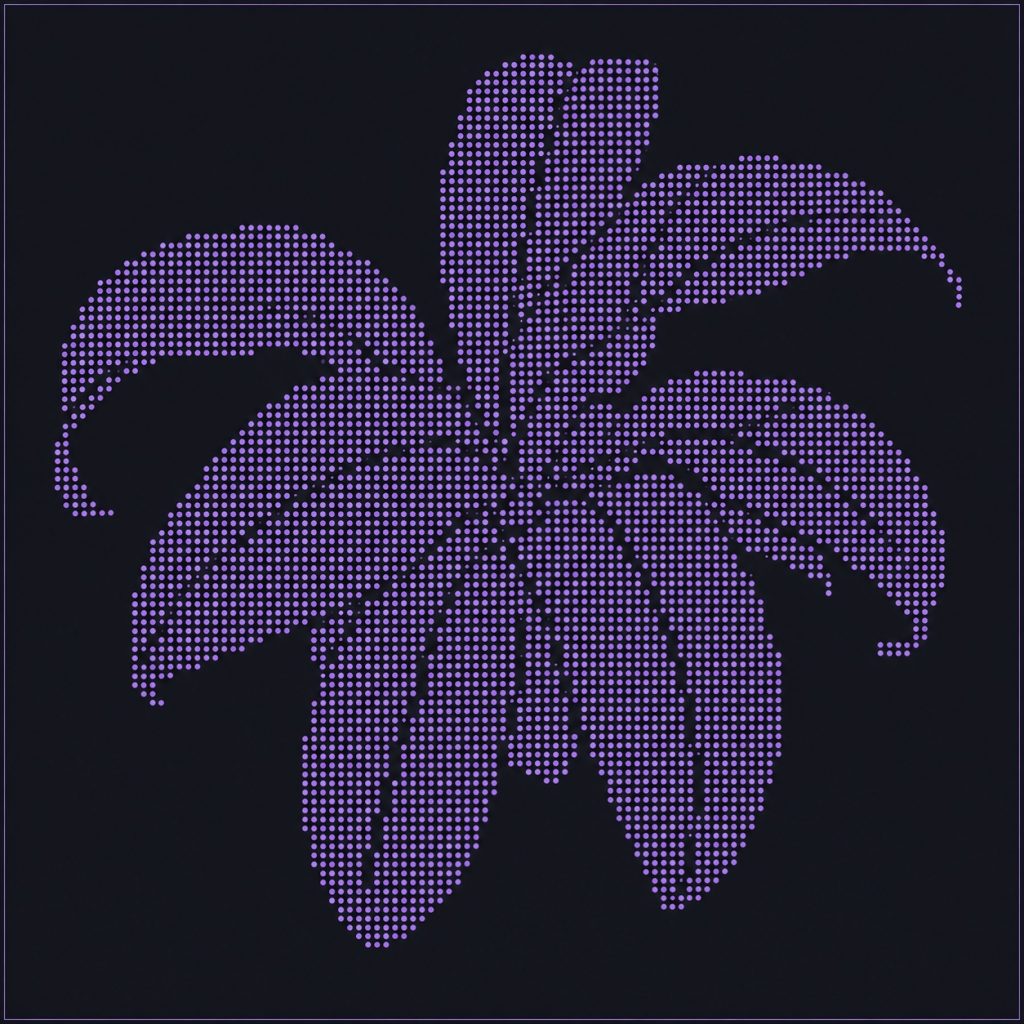
An image can be the beginning of a pattern, not just a reference placed beside one. A logo can become a perforated sign. A photograph can become a halftone surface. A simple illustration can become a repeatable graphic field.
HoleSnap Pattern is a standalone Image to Pattern Generator for exploring those ideas in the browser. Upload an image, logo, or SVG, then adjust the layout, hole shape, pitch, density, and tone mapping until the result fits the project.
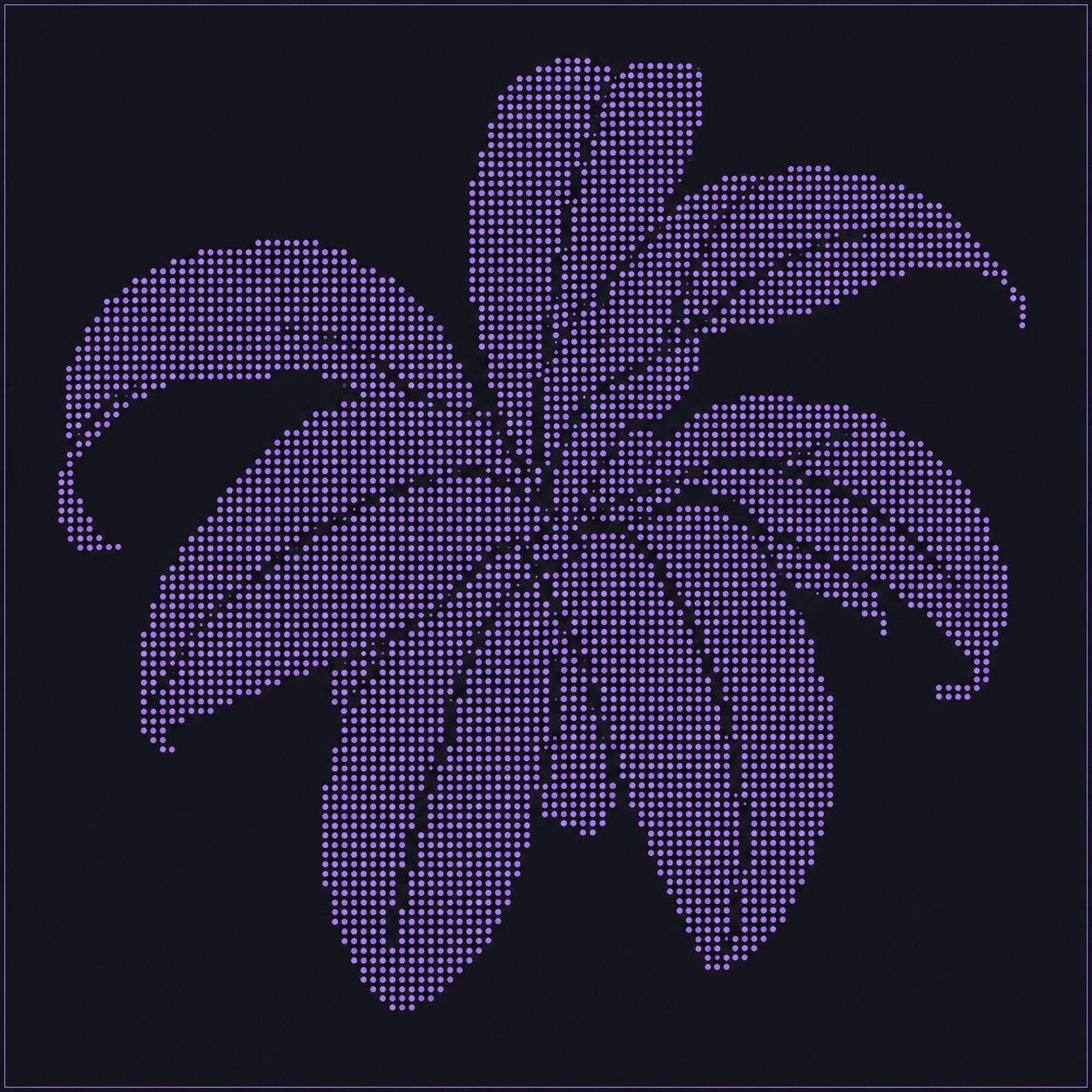
Start with an image or logo
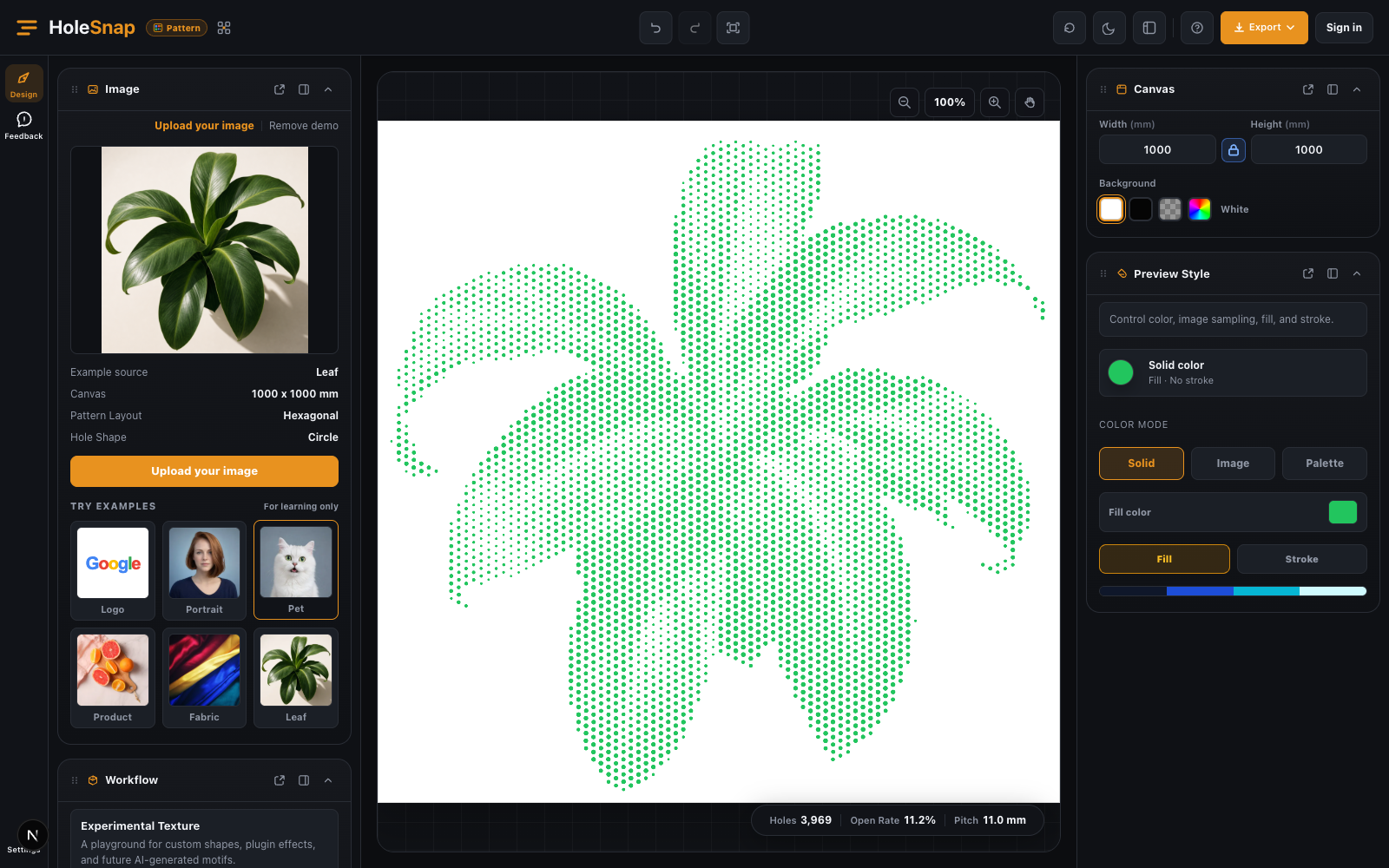
HoleSnap Pattern accepts PNG, JPEG, WebP, and SVG files. You can also begin with one of the built-in starter images.
After the source is loaded, Pattern samples its visual information and uses it to build new geometry. Brightness, contrast, edges, and local detail can influence the result. When the image supports the foreground workflow, segmentation can help separate the subject from its background, but it is an assistive step rather than a guaranteed automatic cutout.
An SVG can be used as an image source, but Pattern does not preserve the source file’s original paths. It samples the source and generates a new pattern from that information, so this is not a lossless SVG tracing tool.
Choose a layout and hole shape
The current workspace includes four field layouts:
- Grid for a regular, aligned field
- Hex for a hexagonal arrangement
- Stagger for an offset rhythm
- Tri for a triangular arrangement
You can pair the layout with four hole shapes: Circle, Square, Diamond, and Triangle. These choices affect both the visual character of the result and how it may fit into a later design or fabrication workflow.
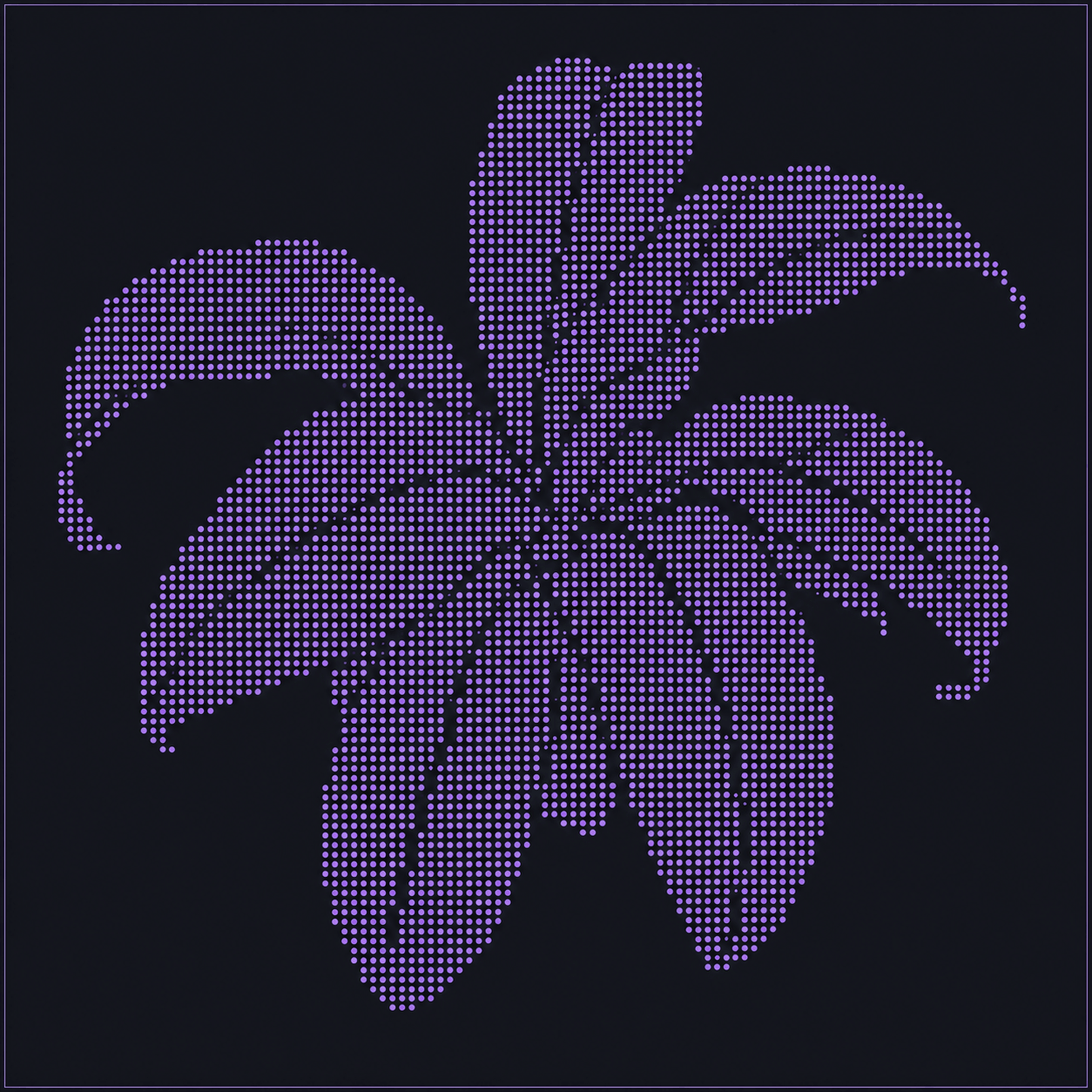
Control tone, density, and variation
Pattern is designed to keep visual decisions and geometric feedback in the same workspace. Adjust the settings that matter for the intended output:
- Pitch, density, rotation, offset, jitter, and seed
- Image-based, inverted, fixed-size, or light seeded size mapping
- Contrast, gamma, threshold, background ignore, edge emphasis, and local detail
- A single hole shape, or separate main and boundary shape roles
The preview also keeps hole count, open rate, and pitch visible. Use those values to compare versions, not as a substitute for a material or manufacturing analysis.

Three practical starting points
Logos and signage
Start with a high-contrast logo or wordmark. Try a regular grid and a simple circle shape first, then adjust pitch, size mapping, edge emphasis, and background ignore until the silhouette reads clearly.
Photos and halftone graphics
Use a photo, portrait, or illustration when the goal is a tonal field. Contrast, gamma, threshold, and edge controls change how much detail survives at the chosen pitch. Generate a PNG preview first, then move to SVG or DXF when the direction is ready for further work.
Decorative and functional panels
For screens, facades, ventilation concepts, or acoustic-panel studies, use the source image to establish the visual direction and the pattern controls to keep the geometry consistent. Review the open rate, pitch, boundaries, and minimum bridge in the target CAD/CAM workflow before production.
Export the right format
Use PNG for a quick visual review and sharing. Use SVG when the pattern should continue into vector design software. Use DXF for a CAD/CAM handoff; DXF export is available with Plus. SVG and DXF exports require sign-in and use your account’s daily export allowance.
The output is a generated pattern, not a promise that any image can become a production-ready file without review. Before cutting or machining, check dimensions, units, hole geometry, closed contours, minimum bridge, boundaries, and machine compatibility in the target software.
HoleSnap Pattern is separate from HoleSnap Mesh and HoleSnap Flow Scene:
- Use Mesh for regular layouts, templates, parameters, and custom paths.
- Use Flow Scene for organic cells and flowing lines.
- Use Pattern when an image, SVG, logo, or photograph should drive the pattern.