SVG to DXF for Laser Cutting: What Designers Should Check
SVG is a flexible vector format for design work, but laser cutting and CAD/CAM workflows often require DXF. Converting SVG to DXF sounds simple, but small file problems can turn into cutting errors, scale issues, duplicate toolpaths, or weak parts.
Before sending a converted DXF file to laser cutting, check the geometry carefully. This article is a practical checklist for designers preparing vector patterns for fabrication.

1. Confirm Scale and Units
Scale is the first thing to check. SVG files may be designed in pixels, points, inches, millimeters, or a mixture of document units. DXF files are usually interpreted by CAD/CAM software using explicit or assumed units.
Before cutting, open the DXF and measure a known dimension. If a 100 mm panel imports as 100 inches or 100 pixels, the file is not ready.
Use a reference rectangle or known panel dimension to confirm scale after conversion.
2. Use Closed Paths for Cutouts
Holes, slots, and custom cutouts should usually be closed paths. Open paths can create incomplete cuts or confusing toolpaths.
Before converting SVG to DXF, inspect the design:
- Are circles and holes closed?
- Are custom shapes closed?
- Are boundary outlines continuous?
- Are there tiny gaps between endpoints?
Closed paths are especially important for perforated patterns because every hole needs to be interpreted consistently.
3. Remove Duplicate Lines
Duplicate lines are a common laser cutting problem. If two identical paths sit on top of each other, the laser may cut the same line twice. This can burn the material, widen the kerf, increase job time, or create poor edges.
Duplicate lines can appear after copying, boolean operations, SVG imports, or pattern generation. Before sending a DXF file to production, use CAD/CAM cleanup tools to detect overlapping geometry.
4. Check Minimum Spacing
Minimum spacing is the distance between neighboring cut paths. If two cutouts are too close, the material between them may become weak or distorted.
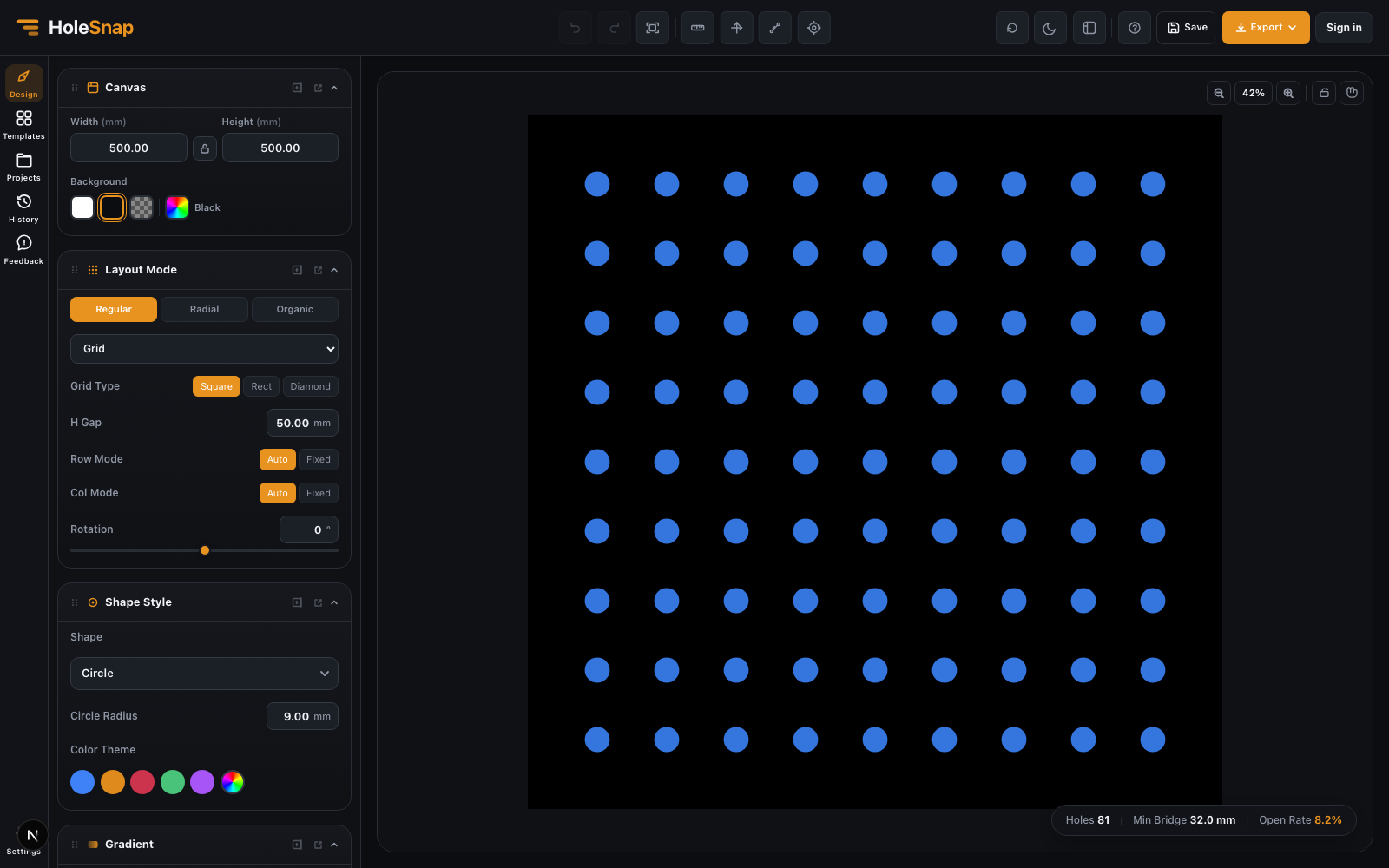
For perforated panels, spacing is not just a visual decision. It controls open area, bridge width, strength, and cutting reliability.
Always check the narrowest material left between holes, between holes and edges, and around mounting features.
5. Check Bridge Width
Bridge width is the material left between openings. A pattern may look good on screen but still be difficult to cut if the bridges are too small.
Minimum bridge width depends on:
- Material type
- Material thickness
- Laser power and kerf
- Hole shape
- Heat buildup
- Sheet size
- Required part strength
If bridge width is too small, reduce hole size, increase spacing, or simplify the pattern.
6. Clean Boundaries
A clean boundary helps the fabricator understand what should be cut as the outside panel and what should be cut as internal holes.
Check that:
- The outer contour is closed.
- Internal cutouts do not overlap the outer edge unintentionally.
- Trimmed holes behave as expected.
- There are no tiny leftover path fragments.
- Boundary and hole layers are organized clearly if layers are used.
For perforated sheets, the edge behavior matters. Decide whether partial holes should be trimmed at the boundary or removed entirely.
7. Simplify Overly Complex Paths
SVG files can contain curves, transforms, masks, strokes, clipping paths, groups, and appearance effects. Not all of these convert cleanly to DXF.
Before conversion, expand or simplify the design when needed:
- Convert strokes to paths if they represent cut geometry.
- Remove masks and visual-only effects.
- Flatten transforms.
- Avoid unnecessary tiny segments.
- Keep only the geometry required for cutting.
A cleaner SVG usually produces a cleaner DXF.
8. Verify in CAD/CAM Software
Never rely only on the original SVG preview. Open the exported DXF in the software used for fabrication or in a reliable CAD viewer.
Check:
- Scale
- Units
- Closed paths
- Duplicate lines
- Layer structure
- Minimum spacing
- Bridge width
- Boundary behavior
- Toolpath interpretation
If the file will be sent to a fabricator, ask what DXF version, units, layer naming, and cleanup rules they prefer.
Final Thoughts
SVG to DXF conversion is common in laser cutting workflows, but the conversion step is only part of the process. A fabrication-ready DXF needs clean geometry, correct scale, closed paths, reasonable spacing, and enough bridge width.
For perforated patterns, check open area and bridge width before export. Then verify the converted DXF in CAD/CAM software before cutting. A few minutes of checking can prevent wasted material, failed cuts, and avoidable production delays.