
HoleSnap Flow Scene: Create Organic Vector Patterns from a Seed
Create repeatable organic and flow-field patterns in HoleSnap Flow Scene. Start with a seed, tune the generator and boundary, then export SVG or DXF for the next stage of your workflow.
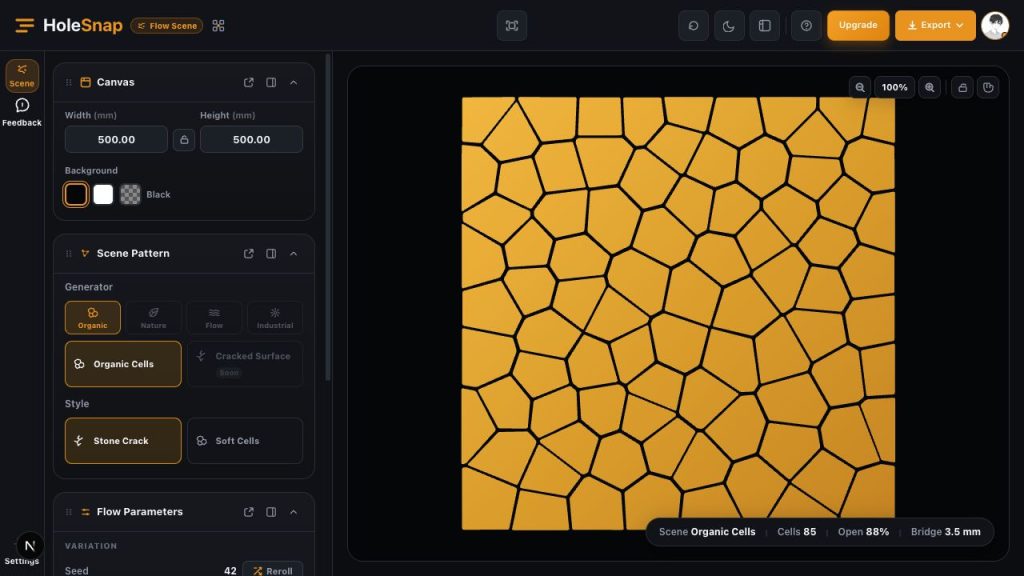
Regular grids are useful, but they are not the right starting point for every design. Decorative screens, feature panels, grilles, and visual surfaces often need a more natural rhythm – something that feels organic without becoming impossible to edit.
HoleSnap Flow Scene is a standalone pattern generator for that kind of work. Start with a generator and a seed, adjust the scene in the browser, and export the resulting vector geometry as SVG or DXF when you are ready to continue in another tool.
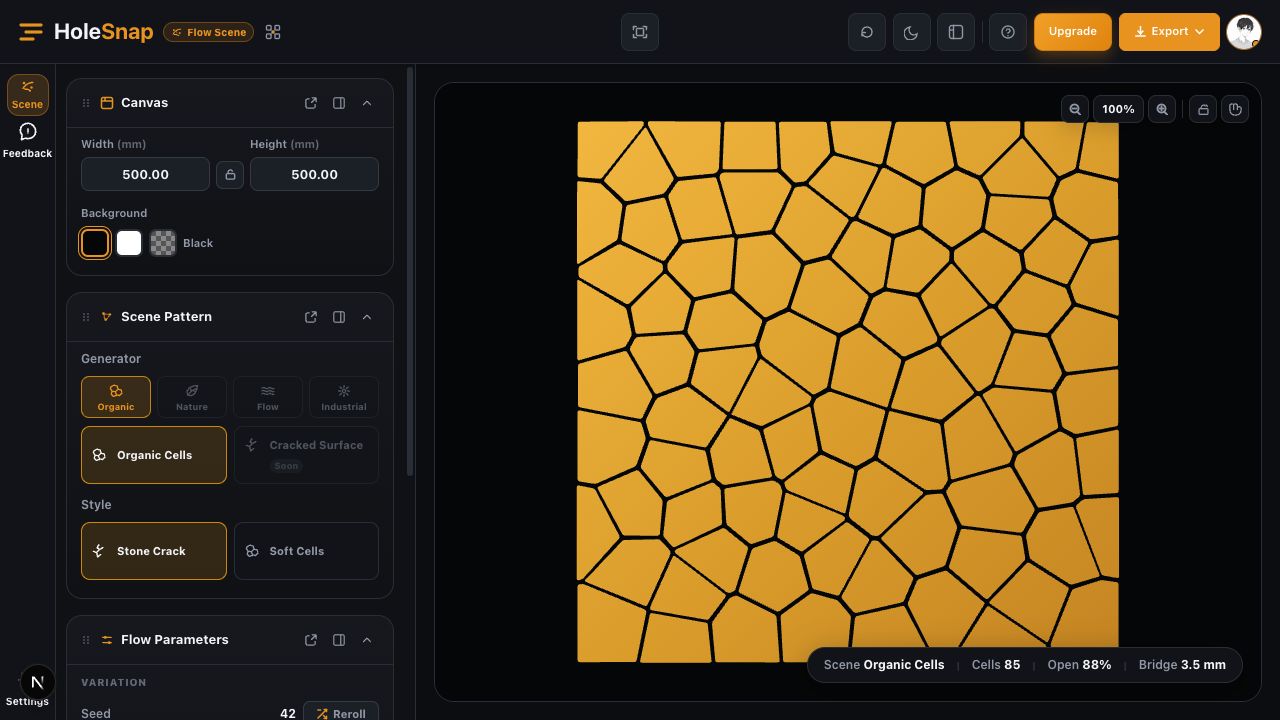
Start with a repeatable seed
Flow Scene uses a deterministic generator, so the seed is more than a random number. It gives the pattern a repeatable starting point. Keep the same seed and settings, and you can return to the same direction later instead of trying to recreate a result by eye.
The current interface provides two generator routes:
- Cell creates irregular organic cells and stone-mosaic geometry.
- Flow creates stream-style lines with presets for water, air, ripple, and vortex-like movement.
Choose a route, adjust the seed, and use the live canvas to judge the result. This makes early exploration faster while keeping the design tied to clear parameters.
Tune the pattern in context
Set the canvas width, height, background, and aspect behavior before refining the geometry. The available controls depend on the selected generator.
For Cell, useful controls include cell size, density, randomness, relaxation, stretch, corner radius, bridge width, and edge margin. For Flow, you can work with line spacing, line width, direction, turbulence, wavelength, amplitude, and edge margin.
The goal is not to make every result perfectly predictable. It is to give you enough control to compare a looser field with a denser one, or a calm flow with a stronger directional texture, without losing the ability to reproduce a promising version.
Shape the usable area with a boundary
Flow Scene also lets you define the area that should remain in the final composition. Choose a rectangular or circular boundary, then decide how geometry outside that boundary should behave:
- Hide keeps the geometry inside the boundary and removes the rest from view.
- Trim cuts the pattern at the boundary edge.
- Margin, corner, and rotation settings help the composition fit the intended panel or surface.
The boundary participates in the final geometry, so review the edge behavior in the preview and in the exported file. Complex trimmed results should always be checked in the CAD or vector application used for the next step.
Where Flow Scene fits
Flow Scene is a useful starting point when the visual language should feel natural but the output still needs to be editable. Common applications include:
- Decorative partitions, privacy screens, and feature walls
- Organic grille and ventilation concepts
- Exhibition graphics, wayfinding studies, and spatial surfaces
- Product enclosures and panel concepts with a softer visual rhythm
- Early explorations based on water, air, ripples, or vortex motion
Flow Scene generates pattern geometry. It does not create a complete panel design, guarantee a manufacturing result, or replace a review of the material and machine requirements.
Export SVG or DXF
When the direction is ready, sign in and export SVG or DXF. SVG is useful for continued vector editing. DXF is a practical handoff format for CAD and CAM workflows.
Exports use your account’s daily allowance. Before fabrication, open the result in the target software and check dimensions, units, contours, boundary behavior, bridge areas, and machine compatibility. The Flow Scene Bridge Width value is a generation target; it is not a measured minimum bridge width or a manufacturing certification.
Flow Scene is separate from HoleSnap Mesh. Use Flow Scene when the design starts with organic cells or flowing lines. Use Mesh when the work starts with regular layouts, templates, parameters, or custom paths.