SVG Converter DXF Checklist for Laser Cutting

Before using an SVG converter for DXF export, check scale, paths, text, duplicate lines, spacing, and preview settings for cleaner laser cutting files.
Perforated pattern export workflow for SVG and DXF

SVG Converter DXF Checklist for Laser Cutting

Searching for an SVG converter DXF workflow usually means one thing: you have vector artwork and need a file your laser cutter, CNC software, or CAD tool can understand.

The conversion step is important, but the checklist before export matters just as much. A DXF can download successfully and still be difficult to cut if the SVG has scale problems, live text, duplicate paths, or visual effects that do not become real geometry.

HoleSnap’s SVG to DXF converter is designed to help with that preflight process.

SVG to DXF checklist for laser cutting

1. Confirm the SVG Contains Real Vector Geometry

DXF export works best when the SVG contains paths and basic vector shapes.

Good elements include:

  • path
  • rect
  • circle
  • ellipse
  • polygon
  • polyline
  • line

Risky elements include:

  • Live text.
  • Embedded images.
  • Filters.
  • Masks.
  • Gradients.
  • Visual-only styling.

If you are preparing a logo, convert text to outlines and remove visual effects before using the converter.

2. Check the Physical Size

Scale is the classic SVG to DXF problem. SVG files often come from visual design software, while DXF files are used in fabrication tools.

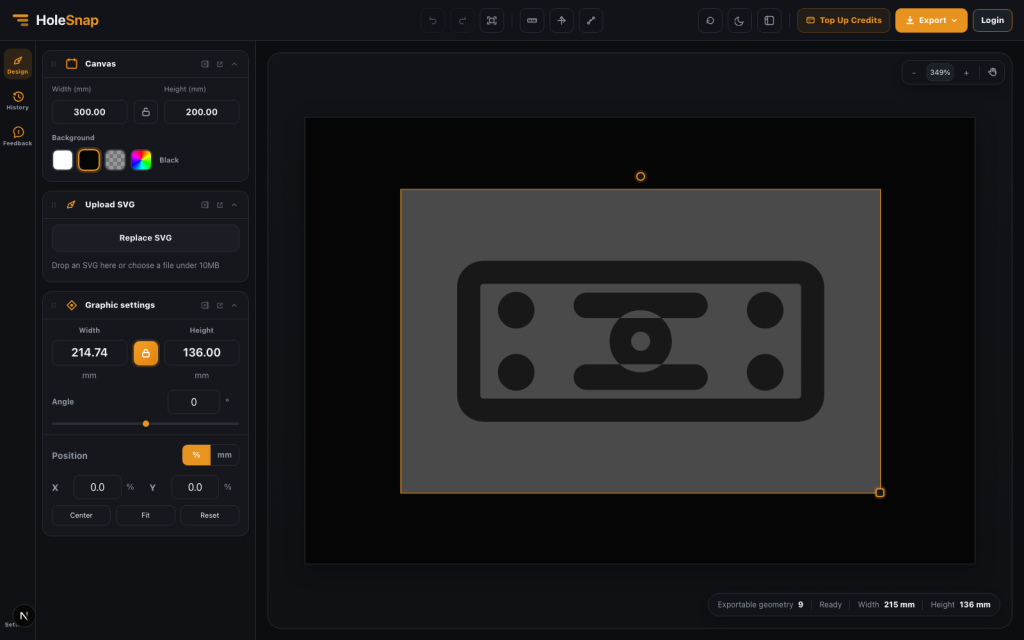
Before exporting, set the intended width and height in millimeters. Do not assume the SVG’s pixel size will translate correctly into CAD.

Set graphic size in millimeters before exporting DXF

Useful checks:

  • Is the full part the right width?
  • Is the full part the right height?
  • Are known features the correct size?
  • Is the aspect ratio locked when needed?
  • Does the drawing fit within the material boundary?

3. Look for Open Paths and Unwanted Fragments

Laser cutting usually works best with clean contours. Some designs are meant to contain open lines, but many cut parts need closed outlines.

Before conversion, inspect the SVG for:

  • Open contours that should be closed.
  • Tiny leftover path fragments.
  • Hidden objects.
  • Duplicate outlines.
  • Stacked lines from copy/paste edits.

Duplicate lines can cause the laser to cut the same path twice. Tiny fragments can create confusing toolpaths.

4. Expand Strokes When Stroke Width Matters

In SVG, a line can have a stroke width. In fabrication, you need to decide whether that stroke is only a visual guide or real geometry.

If the stroke width represents the actual shape, expand it before converting to DXF. Otherwise, the DXF may only contain the centerline.

This is especially important for:

  • Thick lettering.
  • Graphic icons.
  • Decorative borders.
  • Sign layouts.
  • Slot-like artwork drawn with wide strokes.

5. Check Spacing and Bridge Width

Even if the SVG converts cleanly, the design may still be hard to cut if features are too close together.

Check:

  • Minimum spacing between cut lines.
  • Distance from holes to edges.
  • Thin bridges between adjacent shapes.
  • Small details inside logos.
  • Sharp corners in brittle material.

For laser cutting, the safe spacing depends on material, thickness, machine, and kerf. If you are unsure, make a small test cut before using the full design.

6. Preview Before Export

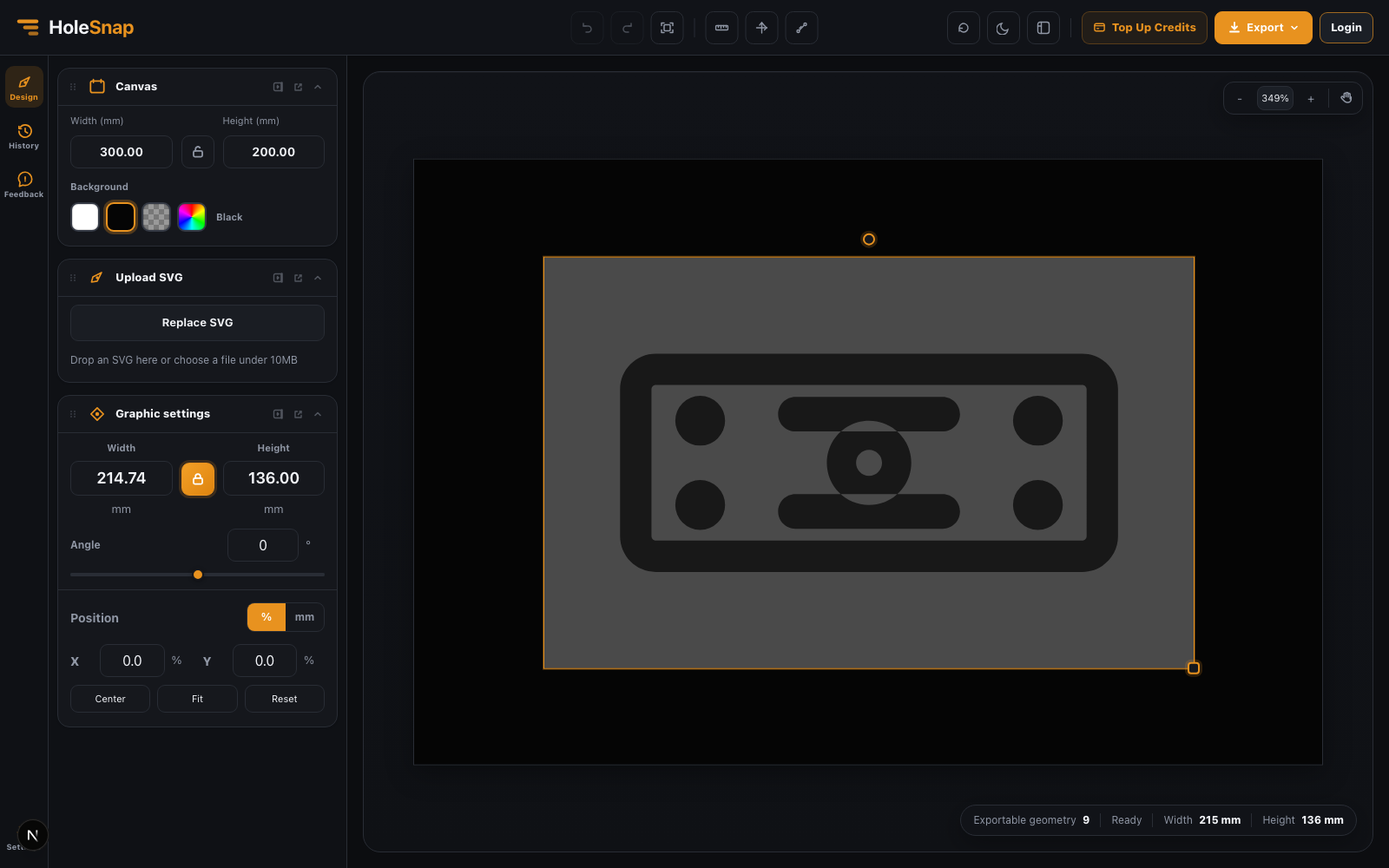
Use the converter preview as a quick preflight screen before downloading DXF.

Preview SVG geometry before converting to DXF

Look for missing objects, incorrect scaling, unexpected rotation, or geometry outside the canvas. A quick preview can catch many mistakes before the file reaches CAD/CAM software.

7. Export DXF and Recheck in Production Software

After the SVG converter creates the DXF, open the file in the software you will actually use for cutting or toolpath preparation.

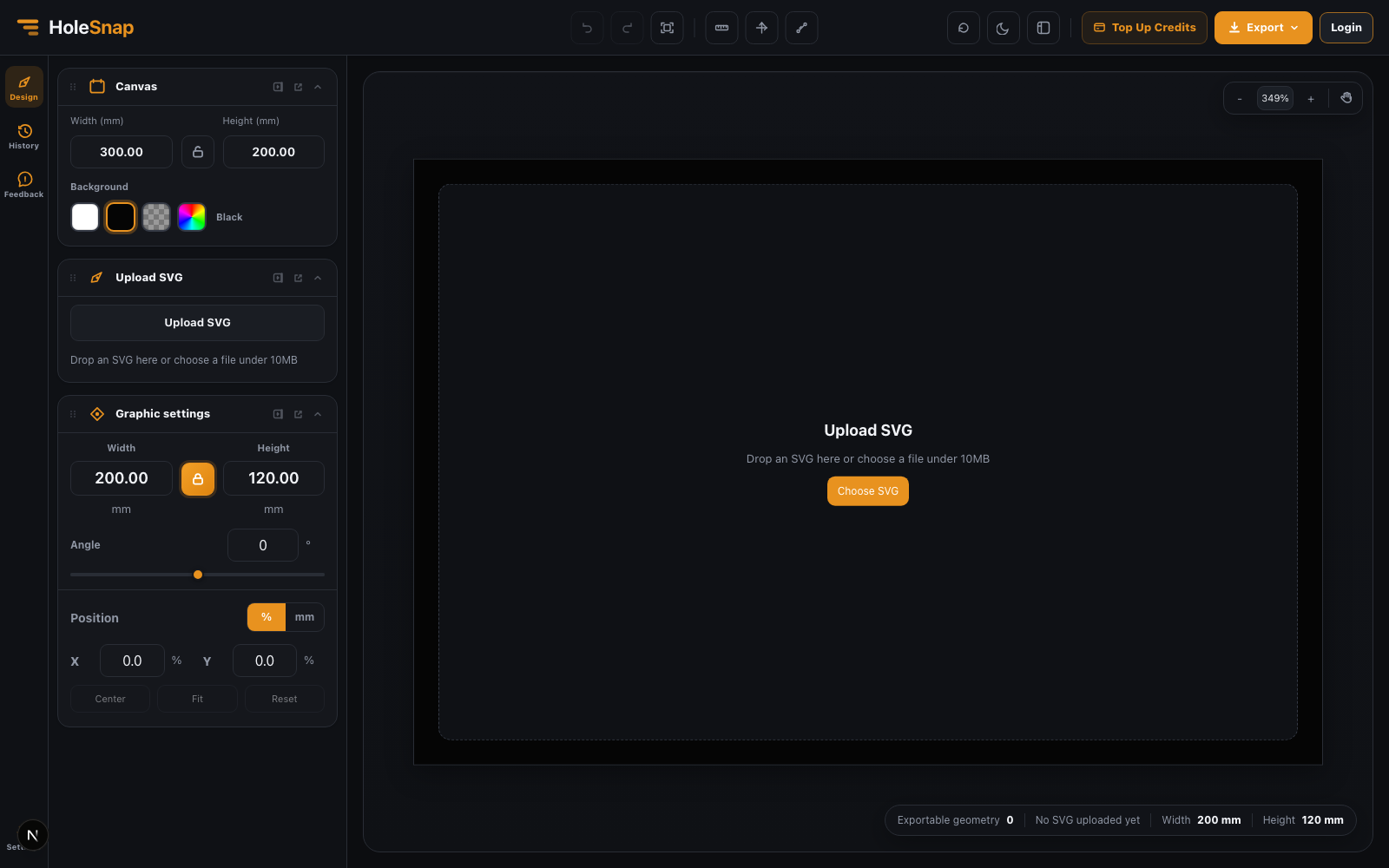
Export menu for SVG and DXF files

Final checks:

  • Units.
  • Overall dimensions.
  • Closed contours.
  • Duplicate lines.
  • Layer expectations.
  • Toolpath order.
  • Kerf compensation.

This final step is worth it, especially when sending a file to a paid cutting service.

Use HoleSnap as Your SVG to DXF Preflight Tool

HoleSnap’s SVG to DXF tool helps you upload SVG files, inspect exportable geometry, set millimeter dimensions, preview placement, and export DXF online.

Try it here:

SVG to DXF Converter for Laser Cutting

Use it as a fast checkpoint between design software and fabrication.

Share:

More Posts