SVG to DXF Converter Online for Clean Cut Files

Use an online SVG to DXF converter to turn vector artwork into cleaner DXF files for laser cutting, CNC routing, product panels, and maker projects.

SVG to DXF Converter Online for Clean Cut Files

If you design parts, panels, signs, brackets, or decorative patterns in SVG, you may eventually need a DXF file for fabrication. A laser cutter, CNC workflow, sheet metal shop, or CAD/CAM program often expects DXF because it describes geometry in a way production tools can inspect and process.

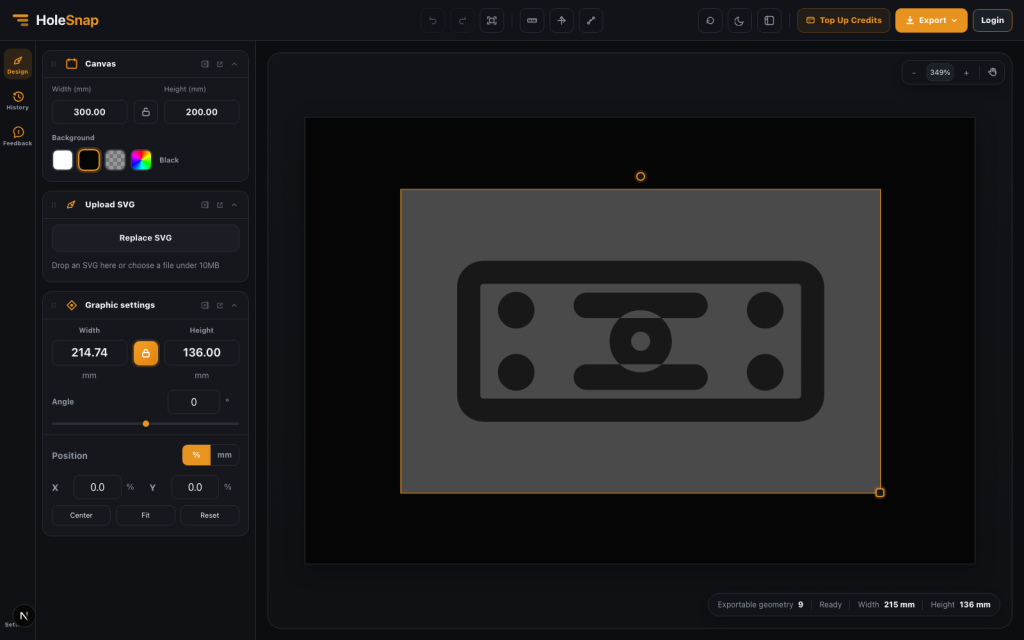
HoleSnap’s SVG to DXF converter gives you a focused online workflow: upload SVG, check exportable geometry, set real dimensions, preview the drawing, and download DXF.

SVG to DXF converter preview in HoleSnap

Why Use an Online SVG to DXF Converter?

Traditional CAD software is powerful, but it can be heavy if your job is simple: convert one SVG into a DXF for laser cutting or CNC review. An online SVG to DXF converter is useful when you already have the artwork and only need a clean handoff format.

Common use cases include:

  • Laser cut acrylic signs.
  • CNC router templates.
  • Sheet metal front panels.
  • Product enclosure cutouts.
  • Logo plates and nameplates.
  • Decorative screen patterns.
  • Maker project brackets.
  • Simple vector outlines for CAD review.

The goal is not to replace engineering CAD. The goal is to bridge the gap between vector design tools and fabrication software.

What the Converter Reads from SVG

An SVG file can contain both real geometry and visual effects. A browser may display all of it, but a DXF export should focus on cuttable vector geometry.

HoleSnap’s converter exports vector geometry from common SVG elements such as:

  • Paths.
  • Rectangles.
  • Circles and ellipses.
  • Polygons.
  • Polylines.
  • Lines.

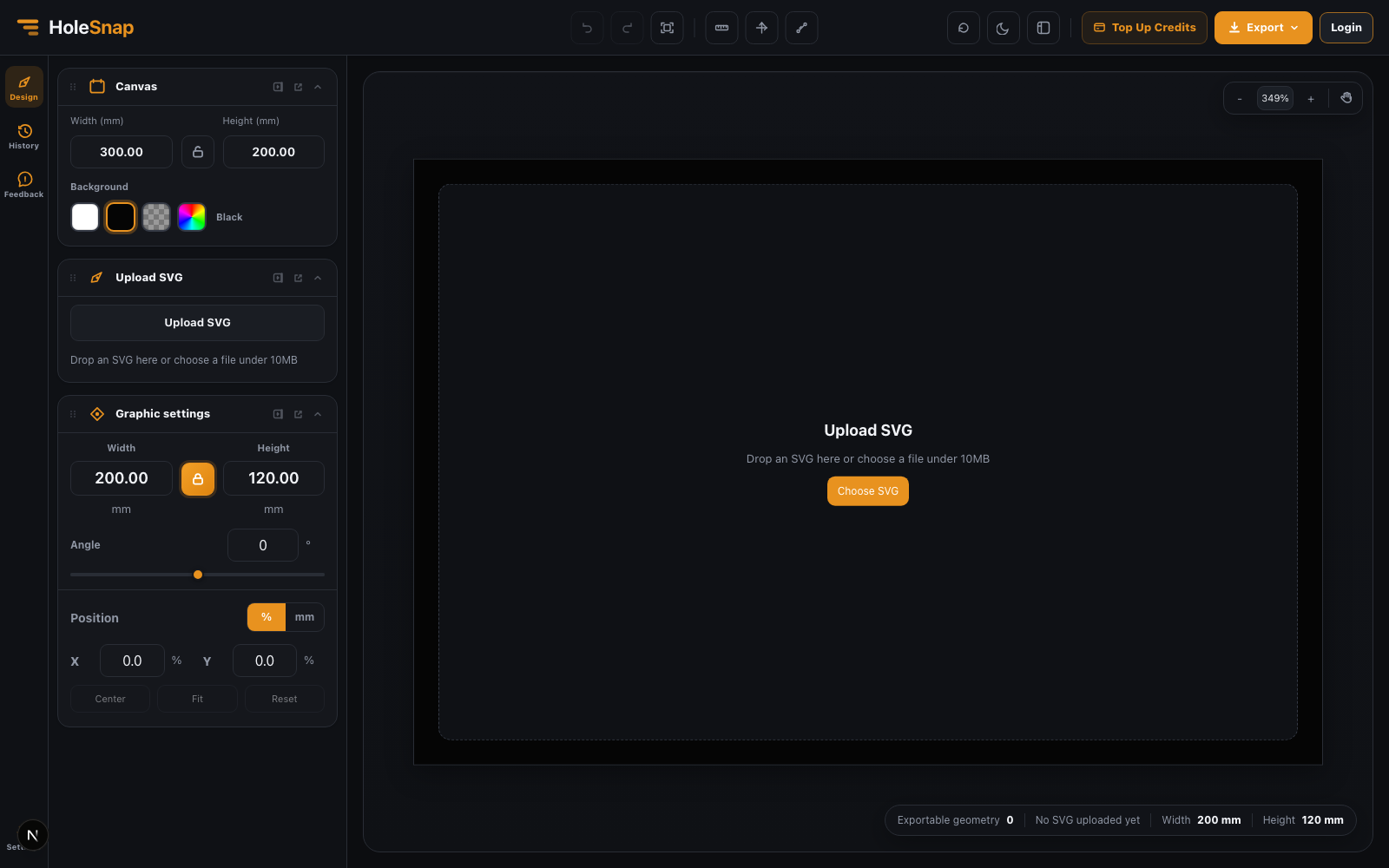
Text, embedded bitmap images, filters, masks, gradients, and other visual-only effects should be converted or simplified before DXF export. If your design depends on live text, convert the text to outlines first in your vector editor.

Upload and export checks for SVG to DXF conversion

Check Scale Before Downloading DXF

Scale is one of the most common problems when converting SVG to DXF. SVG artwork may be created in pixels, points, or arbitrary document units, while fabrication usually needs millimeters or inches.

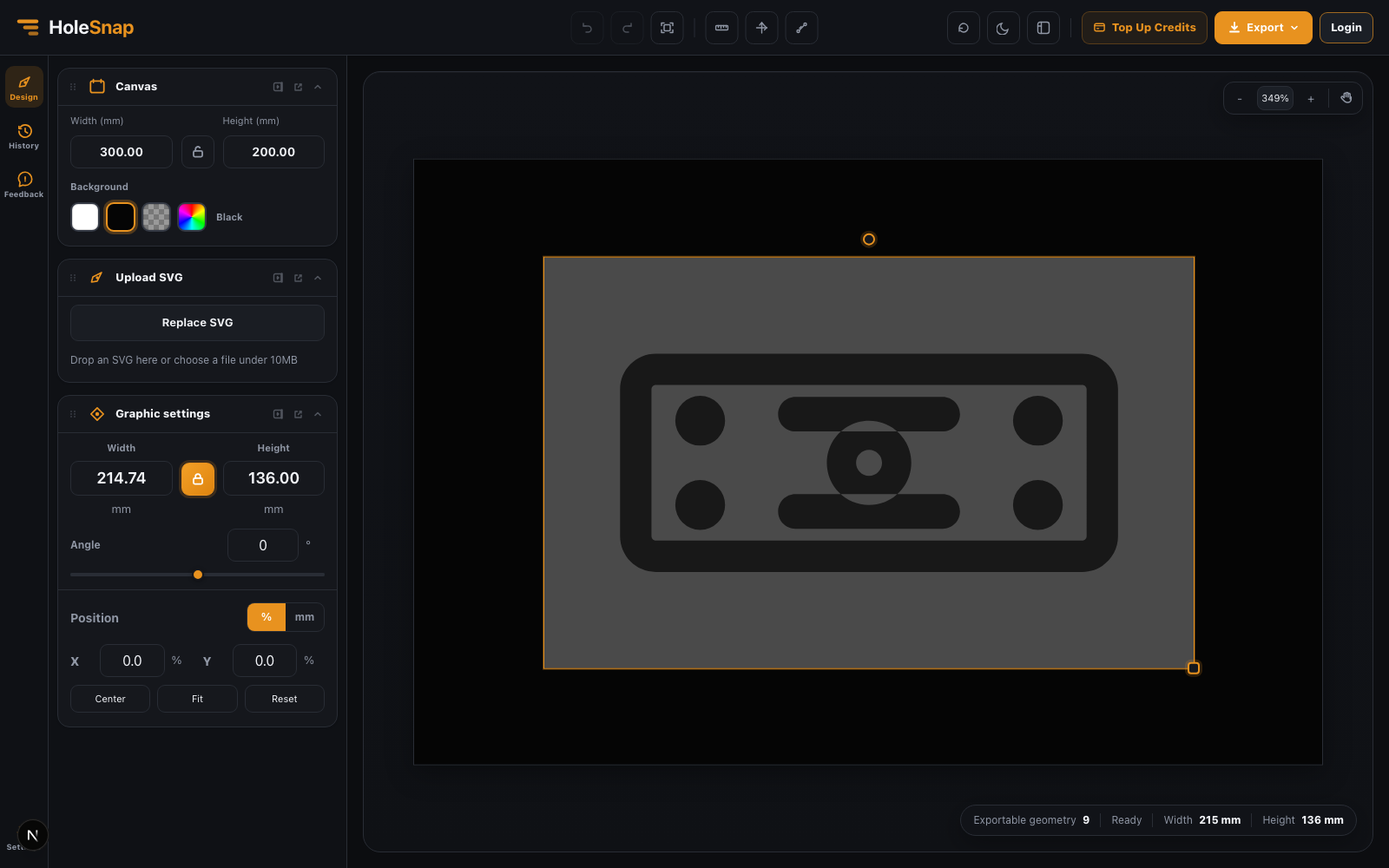
In the HoleSnap workbench, you can set the canvas size and graphic size in millimeters before export. This helps you avoid the common mistake where a DXF opens in CAD at the wrong physical size.

Canvas and graphic size controls for SVG to DXF conversion

Before exporting, check:

  • Canvas width and height.
  • Graphic width and height.
  • Aspect ratio lock.
  • Position on the canvas.
  • Rotation angle.
  • Margin around the design.

If the SVG represents a physical part, verify at least one known dimension after opening the exported DXF in CAD/CAM software.

Use the Preview Like a Preflight Step

A good SVG to DXF workflow should include a quick preflight check. The preview helps you catch issues before you send a file to a cutter.

Look for:

  • Missing geometry.
  • Artwork outside the canvas.
  • Unwanted scaling.
  • Rotation mistakes.
  • Tiny leftover paths.
  • Holes or slots too close to the edge.
Ruler and axis view for inspecting SVG before DXF export

The preview is especially helpful for designers who are coming from Illustrator, Figma, Inkscape, Affinity Designer, or other visual tools. Your design may look correct visually, but the production file still needs clean geometry.

Export DXF for Laser Cutting or CNC

When the preview looks correct, choose DXF from the export menu. The exported file can then be opened in CAD/CAM software for final production checks.

DXF export menu in the SVG to DXF converter

Before cutting material, check:

  • Units and overall scale.
  • Closed paths.
  • Duplicate lines.
  • Minimum spacing.
  • Toolpath direction if your CAM software uses it.
  • Whether strokes have been expanded if stroke width matters.

This final CAD/CAM review is still important. The online converter helps you prepare the file faster, but fabrication always deserves one last inspection.

Try the SVG to DXF Tool

If you need a quick SVG to DXF converter online, open HoleSnap’s tool here:

Convert SVG to DXF with HoleSnap

Upload your SVG, check the geometry, set the size in millimeters, and export a DXF file for laser cutting, CNC routing, or CAD review.

Share:

More Posts