
Overview #
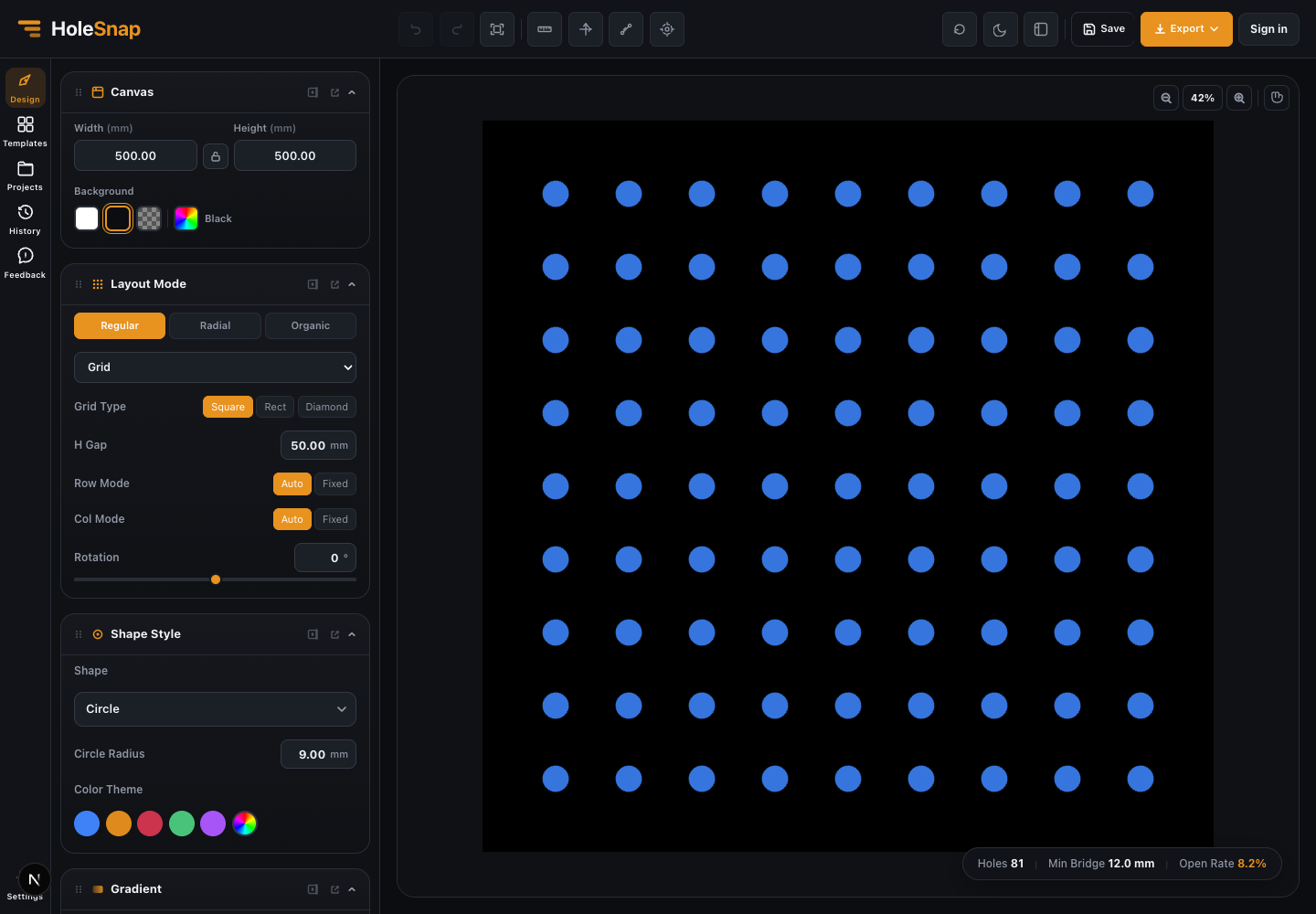
The HoleSnap workspace is organized around three main areas: the top bar, the left sidebar, and the central canvas. Once you understand these areas, it becomes much easier to move between design settings, templates, projects, preview tools, and export options.
Top Bar #
The top bar contains global actions and view tools. Use it when you want to save, export, change the view, switch theme, or access account-related actions.
Common top-bar controls include:
- Save: store the current design as a project.
- Export: download SVG, DXF, STP, or other supported formats.
- View tools: fit view, ruler, axes, measurement, and canvas controls.
- Theme: switch between available visual themes.
- Account: sign in, manage access, and use account-based features.
Left Sidebar #
The left sidebar is the main navigation for editor modules.
Use it to switch between:
- Design: edit canvas, layout, shape, gradient, boundary, and effects.
- Templates: start from a reusable pattern.
- Projects: open or manage saved work.
- History: restore earlier versions when available.
- Feedback: report issues or send suggestions.
- Settings: change editor preferences.
Parameter Panels #
When you are in the Design section, the left panel shows stacked controls such as Canvas, Layout Mode, Shape Style, Gradient, Displacement, and Boundary.
Each panel controls one part of the design. For example, Canvas controls the panel size, Layout Mode controls how holes are arranged, and Shape Style controls the hole geometry.
Central Canvas #
The canvas shows the live perforation preview. It updates as you change size, spacing, shape, gradient, boundary, or layout settings.
Use the canvas to check:
- Overall pattern appearance.
- Edge trimming and boundary behavior.
- Hole density.
- Spacing and alignment.
- Visual balance before export.
Status Bar #
The status bar shows live design metrics, usually including hole count, minimum bridge, and open rate. These values help you understand how the pattern may behave in fabrication.
Practical Tips #
- Start in the Design section for most editing tasks.
- Use Templates when you want a fast starting point.
- Use Projects when saving or reopening work.
- Watch the status bar while changing spacing or hole size.
- Use Export only after checking scale, bridge width, and preview behavior.


